Difference between revisions of "Selections"
From Tranzman Documentation
| (14 intermediate revisions by the same user not shown) | |||
| Line 1: | Line 1: | ||
| + | __TOC__ | ||
| + | <br> | ||
| + | <br> | ||
| + | <div style="background-color:#fde9e9; padding: 1.5rem; border-radius:8px; max-width:80%; margin: 0 auto; margin-bottom:2rem;"> | ||
| + | <h1 style="border-bottom:none; font-size:2.5em; font-weight:bold; text-align:center;">Selections Overview & Migration Rules</h1> | ||
| + | <p style="font-size:1.2em; text-align:left;"> | ||
| + | <b>Selections</b> allow you to choose components for migration, providing granularity in selecting configurations, images, and other components.<br> | ||
| + | <ul style="text-align:left; margin:1em 0 0 2em;"> | ||
| + | <li>Selections are enabled after adding servers to Tranzman and completing Discovery.</li> | ||
| + | <li>At least one migration pair (origin and destination) is required to enable selections.</li> | ||
| + | <li>Multiple migration pairs can be created for complex scenarios (e.g., 2-to-1 migrations).</li> | ||
| + | </ul> | ||
| + | </p> | ||
| + | <div style="background-color:#f8e2b3; padding:0.2rem; border-radius:8px; box-shadow:0 2px 4px rgba(0,0,0,0.06); font-size:1em; margin: 0 auto;"> | ||
| + | <p>🛈 <i>Selections should be modified only before the transition is started. Changes after transition will invalidate the existing license.</i></p> | ||
| + | </div> | ||
| + | </div> | ||
| − | == | + | <div style="max-width:80%; margin: 0 auto;"> |
| + | <div style="background-color:#edf7ff; padding:1.5rem; border-radius:8px; box-shadow:0 2px 4px rgba(0,0,0,0.06); margin-bottom:2rem;"> | ||
| + | <h2 style="border-bottom:2px solid #bbdefb; padding-bottom:0.5rem; font-size:1.5em;">Creating Migration Pair</h2> | ||
| + | <ul> | ||
| + | <li>Select origin and destination servers from the drop-down list.</li> | ||
| + | <li>Navigate to <b>Tasks</b> → <b>Selections</b> and click <b>Create a migration pair</b>.</li> | ||
| + | <li>For 2-to-1 migrations, create two selection pairs (each with an origin and destination).</li> | ||
| + | </ul> | ||
| + | </div> | ||
| − | Selections | + | <div style="background-color:#fef3f7; padding:1.5rem; border-radius:8px; box-shadow:0 2px 4px rgba(0,0,0,0.06); margin-bottom:2rem;"> |
| + | <h2 style="border-bottom:2px solid #f8bbd0; padding-bottom:0.5rem; font-size:1.5em;">Defining Rules for Selections</h2> | ||
| + | [[File:Selections.jpg|700px]] | ||
| + | <ul> | ||
| + | <li><b>Image Rules</b>: Select images for migration (all or by properties like Backup Time, Expire Time, Policy, etc.).</li> | ||
| + | <li><b>Config Object Rules</b>: Granular selection of configuration objects (e.g., Workload, Residency).</li> | ||
| + | <li><b>Rename Rules</b>: Rename, map, or ignore configurations.</li> | ||
| + | <li><b>Pre-Duplication & Duplication Rules</b>: Define rules for duplicating image copies pre/post migration.</li> | ||
| + | <li><b>Merge Configs</b>: Migrate individual config entities and host properties.</li> | ||
| + | <li><b>Verify</b>: Check for inconsistencies and dependencies in selections.</li> | ||
| + | </ul> | ||
| + | <div style="background-color:#f8e2b3; padding:0.2rem; border-radius:8px; box-shadow:0 2px 4px rgba(0,0,0,0.06); font-size:1em; margin: 0 auto;"> | ||
| + | <p>🛈 <i>Resolve all inconsistencies and dependencies for successful configuration migration.</i></p> | ||
| + | </div> | ||
| + | </div> | ||
| + | <div style="background-color:#eff8f0; padding:1.5rem; border-radius:8px; box-shadow:0 2px 4px rgba(0,0,0,0.06); margin-bottom:2rem;"> | ||
| + | <h2 style="border-bottom:2px solid #c8e6c9; padding-bottom:0.5rem; font-size:1.5em;">Config Object Rules</h2> | ||
| + | <ul> | ||
| + | <li>Click <b>Config Object Rules</b> under <b>Selections</b> tab.</li> | ||
| + | <li>Tranzman pre-populates configurations by section.</li> | ||
| + | <li>Select, deselect, or rename entities as needed.</li> | ||
| + | <li>Click <b>Commit</b> to save selections.</li> | ||
| + | <li>Use <b>reset</b> icon to revert to default selections.</li> | ||
| + | </ul> | ||
| + | [[File:Selections_config_obj_rule.jpg|700px]] | ||
| + | <p> | ||
| + | Download selections using <b>Download filter</b> icon or upload a custom list via <b>Upload filter</b> icon. | ||
| + | </p> | ||
| + | [[File:Selections_config_obj_rule_download.jpg|700px]] | ||
| + | </div> | ||
| − | + | <div style="background-color:#fffbf4; padding:1.5rem; border-radius:8px; box-shadow:0 2px 4px rgba(0,0,0,0.06); margin-bottom:2rem;"> | |
| + | <h2 style="border-bottom:2px solid #ffe0b2; padding-bottom:0.5rem; font-size:1.5em;">Image Rules</h2> | ||
| + | <ul> | ||
| + | <li>Granular selection of images for migration.</li> | ||
| + | <li>Recommended to perform after <b>Config Object Rules</b> to avoid <i>MISSING_XXX_MAPPING</i> errors.</li> | ||
| + | <li>Cannot be modified after transition starts (requires reverting appliance state).</li> | ||
| + | <li>Consider already migrated images on destination before making changes.</li> | ||
| + | <li>Click <b>+</b> to add image rules.</li> | ||
| + | </ul> | ||
| + | [[File:Selections_image_rule.jpg|700px]] | ||
| + | <ul> | ||
| + | <li>Exclude specific images using <b>Add Exclude Rule</b> icon.</li> | ||
| + | </ul> | ||
| + | [[File:Selections_image_rule_exclude_rule.jpg|700px]] | ||
| + | <ul> | ||
| + | <li>Download/upload image rules as CSV. First line must define separator (e.g., <i>sep=|</i>).</li> | ||
| + | <li>Inclusion: <code><serial num>|+|<criteria></code>, Exclusion: replace <code>+</code> with <code>-</code>.</li> | ||
| + | </ul> | ||
| + | [[File:Selections_image_rule_csv.jpg|700px]] | ||
| + | </div> | ||
| − | <b> | + | <div style="background-color:#edf7ff; padding:1.5rem; border-radius:8px; box-shadow:0 2px 4px rgba(0,0,0,0.06); margin-bottom:2rem;"> |
| + | <h2 style="border-bottom:2px solid #bbdefb; padding-bottom:0.5rem; font-size:1.5em;">Rename Rules</h2> | ||
| + | <ul> | ||
| + | <li>Rename objects during migration (must be selected for migration).</li> | ||
| + | <li>Map objects of same type (object must NOT be selected, new name must exist or be migrated).</li> | ||
| + | <li>Exclude components using <code>NOT_MIGRATED</code> keyword (affects SLPs and DiskMediaIds).</li> | ||
| + | <li>Highlight missing config by images not selected, renamed, or mapped (<i>MISSING_XXXX_MAPPING</i>).</li> | ||
| + | </ul> | ||
| + | [[File:Selections_rename_rule.jpg|700px]] | ||
| + | <p> | ||
| + | <b>Example:</b> Excluding disk/tape backups with multiple copies. Only the copy on the excluded media will not be migrated; others remain on origin. | ||
| + | </p> | ||
| + | <table style="width:100%;color:white;background-color:black;font-family:monospace,monospace;border-collapse:seperate;border-radius:5px 5px;border:3px solid #000;box-shadow: 5px 5px 10px grey;"> | ||
| + | <tr><td><font style="color:blue"># </font>bpimagelist -backupid qa-nbu812-o-lnx-g-e2e.devs.com_1692236444</td></tr> | ||
| + | <tr><td>IMAGE ...</td></tr> | ||
| + | <tr><td>HISTO ...</td></tr> | ||
| + | <tr><td>FRAG 1 ... @aaaab ...</td></tr> | ||
| + | <tr><td><font style="color:red">FRAG 2 ... NBDB06 ...</font></td></tr> | ||
| + | <tr><td><font style="color:blue"># </font></td></tr> | ||
| + | </table> | ||
| + | </div> | ||
| − | < | + | <div style="background-color:#fef3f7; padding:1.5rem; border-radius:8px; box-shadow:0 2px 4px rgba(0,0,0,0.06); margin-bottom:2rem;"> |
| + | <h2 style="border-bottom:2px solid #f8bbd0; padding-bottom:0.5rem; font-size:1.5em;">Duplication Rules</h2> | ||
| + | <ul> | ||
| + | <li>Define rules for duplication on Origin (pre-migration) or Destination (post-migration).</li> | ||
| + | <li>Rules are based on images from the Origin.</li> | ||
| + | <li>Cannot be modified after transition starts (requires reverting appliance state).</li> | ||
| + | <li>If no rules are defined at start, action is paused; if added after, resume manually.</li> | ||
| + | </ul> | ||
| + | [[File:Selections_duplication_rule.jpg|700px]] | ||
| + | </div> | ||
| − | <b> | + | <div style="background-color:#eff8f0; padding:1.5rem; border-radius:8px; box-shadow:0 2px 4px rgba(0,0,0,0.06); margin-bottom:2rem;"> |
| + | <h2 style="border-bottom:2px solid #c8e6c9; padding-bottom:0.5rem; font-size:1.5em;">Merge Configs</h2> | ||
| + | <ul> | ||
| + | <li>Lists all config settings between Origin and Destination.</li> | ||
| + | <li>Use arrow to select origin setting and update destination.</li> | ||
| + | <li>Use <i>revert</i> to undo changes.</li> | ||
| + | <li>Custom values can be typed directly.</li> | ||
| + | <li>Click <b>Commit</b> before navigating away or closing dialog.</li> | ||
| + | <li>Handled during <b>CreateConfig</b> action; must be done before transition starts.</li> | ||
| + | </ul> | ||
| + | [[File:Selections_merge_config.jpg|700px]] | ||
| + | </div> | ||
| − | < | + | <div style="background-color:#fffbf4; padding:1.5rem; border-radius:8px; box-shadow:0 2px 4px rgba(0,0,0,0.06); margin-bottom:2rem;"> |
| + | <h2 style="border-bottom:2px solid #ffe0b2; padding-bottom:0.5rem; font-size:1.5em;">Verify</h2> | ||
| + | <ul> | ||
| + | <li>Verify selected configuration objects, images, and rename rules.</li> | ||
| + | <li>Validate server, SLP, and disk pool mappings.</li> | ||
| + | <li>Check for valid config names in renames.</li> | ||
| + | <li>Identify duplicate configuration objects needing rename or mapping.</li> | ||
| + | </ul> | ||
| + | [[File:Selections_verify.jpg|700px]] | ||
| + | </div> | ||
| − | <b> | + | <div style="background-color:#edf7ff; padding:1.5rem; border-radius:8px; box-shadow:0 2px 4px rgba(0,0,0,0.06); margin-bottom:2rem;"> |
| + | <h2 style="border-bottom:2px solid #bbdefb; padding-bottom:0.5rem; font-size:1.5em;">Other Options in Selections</h2> | ||
| + | <ul> | ||
| + | <li><b>Import empty media</b>: Add empty (scratch) media to destination. Use only for same vendor transitions.</li> | ||
| + | <li><b>Demote Origin Master</b>: Demote origin master as media server on destination (yes/no/partial). For domain split, only one pair can be 'Yes'.</li> | ||
| + | <li><b>Switchover date</b>: Select anticipated switchover date. Tranzman verifies feasibility and ignores images expiring before switchover.</li> | ||
| + | </ul> | ||
| + | [[File:Selections_others.jpg|700px]] | ||
| + | <div style="background-color:#f8e2b3; padding:0.2rem; border-radius:8px; box-shadow:0 2px 4px rgba(0,0,0,0.06); font-size:1em; margin: 0 auto;"> | ||
| + | <p>🛈 <i>Modifying switchover date impacts data transfer and may result in expired images migrated to destination.</i></p> | ||
| + | </div> | ||
| + | </div> | ||
| + | </div> | ||
| − | + | <div style="display:flex; justify-content:space-between; margin-top:2rem; padding:1rem; background-color:#ffffff; max-width:90%; margin: 2rem auto 0;"> | |
| − | + | <div style="text-align:left;"> | |
| − | + | [[File:prev_icon.jpg|30px|link=Discovery]] [[Discovery|Previous]] | |
| − | + | </div> | |
| − | + | <div style="text-align:right;"> | |
| − | + | [[Pre-Assessment|Next]] [[File:next_icon.jpg|30px|link=Pre-Assessment]] | |
| − | + | </div> | |
| − | + | </div> | |
| − | |||
| − | |||
| − | |||
| − | [[File: | ||
| − | |||
| − | |||
| − | |||
| − | |||
| − | |||
| − | |||
| − | |||
| − | < | ||
| − | |||
| − | |||
| − | |||
| − | |||
| − | |||
| − | |||
| − | |||
| − | |||
| − | |||
| − | |||
| − | |||
| − | |||
| − | |||
| − | |||
| − | |||
| − | |||
| − | |||
| − | |||
| − | |||
| − | [[ | ||
| − | |||
| − | |||
Latest revision as of 18:37, 11 September 2025
Contents
Selections Overview & Migration Rules
Selections allow you to choose components for migration, providing granularity in selecting configurations, images, and other components.
- Selections are enabled after adding servers to Tranzman and completing Discovery.
- At least one migration pair (origin and destination) is required to enable selections.
- Multiple migration pairs can be created for complex scenarios (e.g., 2-to-1 migrations).
🛈 Selections should be modified only before the transition is started. Changes after transition will invalidate the existing license.
Creating Migration Pair
- Select origin and destination servers from the drop-down list.
- Navigate to Tasks → Selections and click Create a migration pair.
- For 2-to-1 migrations, create two selection pairs (each with an origin and destination).
Defining Rules for Selections
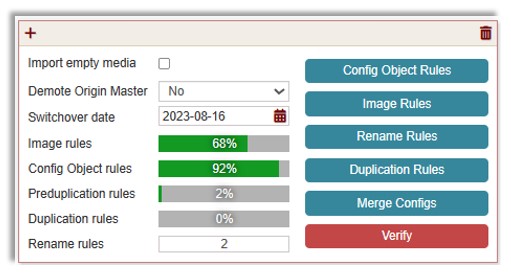

- Image Rules: Select images for migration (all or by properties like Backup Time, Expire Time, Policy, etc.).
- Config Object Rules: Granular selection of configuration objects (e.g., Workload, Residency).
- Rename Rules: Rename, map, or ignore configurations.
- Pre-Duplication & Duplication Rules: Define rules for duplicating image copies pre/post migration.
- Merge Configs: Migrate individual config entities and host properties.
- Verify: Check for inconsistencies and dependencies in selections.
🛈 Resolve all inconsistencies and dependencies for successful configuration migration.
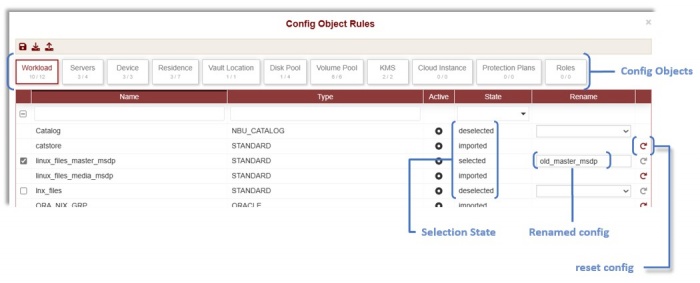
Config Object Rules
- Click Config Object Rules under Selections tab.
- Tranzman pre-populates configurations by section.
- Select, deselect, or rename entities as needed.
- Click Commit to save selections.
- Use reset icon to revert to default selections.

Download selections using Download filter icon or upload a custom list via Upload filter icon.
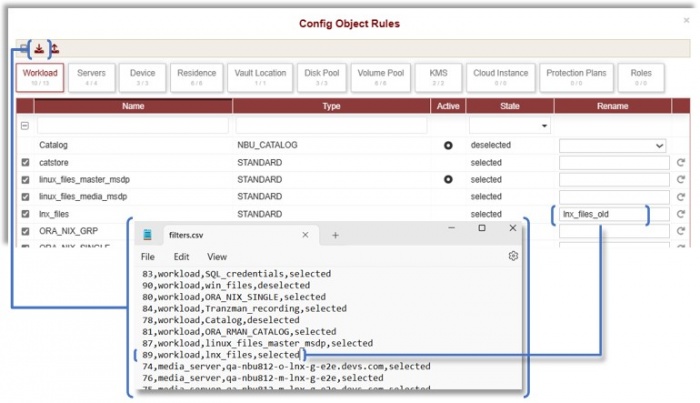

Image Rules
- Granular selection of images for migration.
- Recommended to perform after Config Object Rules to avoid MISSING_XXX_MAPPING errors.
- Cannot be modified after transition starts (requires reverting appliance state).
- Consider already migrated images on destination before making changes.
- Click + to add image rules.
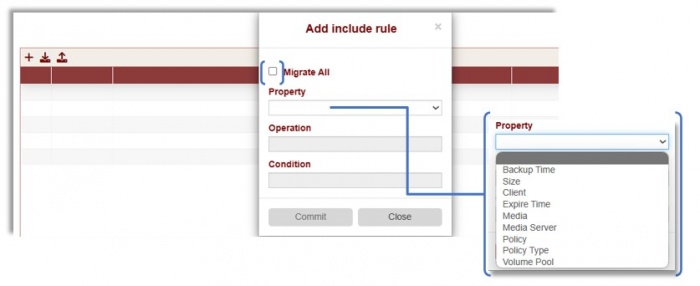

- Exclude specific images using Add Exclude Rule icon.
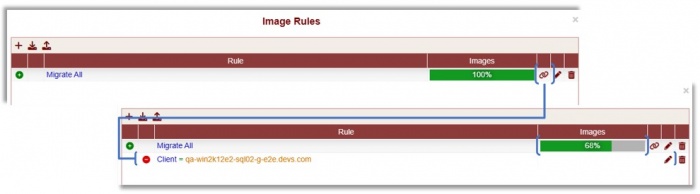

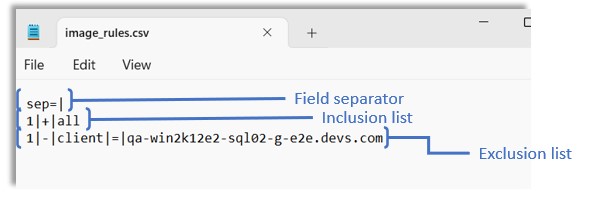
- Download/upload image rules as CSV. First line must define separator (e.g., sep=|).
- Inclusion:
<serial num>|+|<criteria>, Exclusion: replace+with-.

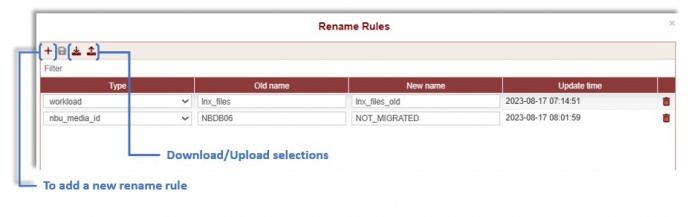
Rename Rules
- Rename objects during migration (must be selected for migration).
- Map objects of same type (object must NOT be selected, new name must exist or be migrated).
- Exclude components using
NOT_MIGRATEDkeyword (affects SLPs and DiskMediaIds). - Highlight missing config by images not selected, renamed, or mapped (MISSING_XXXX_MAPPING).

Example: Excluding disk/tape backups with multiple copies. Only the copy on the excluded media will not be migrated; others remain on origin.
| # bpimagelist -backupid qa-nbu812-o-lnx-g-e2e.devs.com_1692236444 |
| IMAGE ... |
| HISTO ... |
| FRAG 1 ... @aaaab ... |
| FRAG 2 ... NBDB06 ... |
| # |
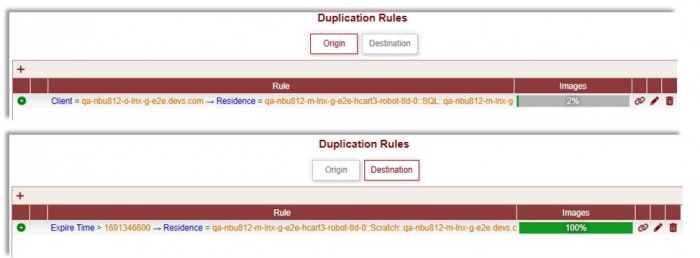
Duplication Rules
- Define rules for duplication on Origin (pre-migration) or Destination (post-migration).
- Rules are based on images from the Origin.
- Cannot be modified after transition starts (requires reverting appliance state).
- If no rules are defined at start, action is paused; if added after, resume manually.

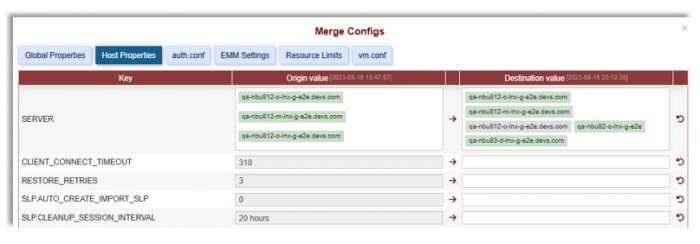
Merge Configs
- Lists all config settings between Origin and Destination.
- Use arrow to select origin setting and update destination.
- Use revert to undo changes.
- Custom values can be typed directly.
- Click Commit before navigating away or closing dialog.
- Handled during CreateConfig action; must be done before transition starts.

Verify
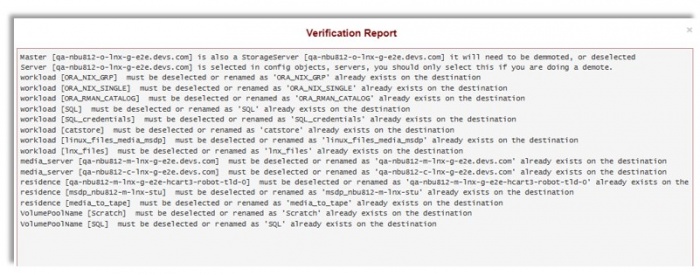
- Verify selected configuration objects, images, and rename rules.
- Validate server, SLP, and disk pool mappings.
- Check for valid config names in renames.
- Identify duplicate configuration objects needing rename or mapping.

Other Options in Selections
- Import empty media: Add empty (scratch) media to destination. Use only for same vendor transitions.
- Demote Origin Master: Demote origin master as media server on destination (yes/no/partial). For domain split, only one pair can be 'Yes'.
- Switchover date: Select anticipated switchover date. Tranzman verifies feasibility and ignores images expiring before switchover.
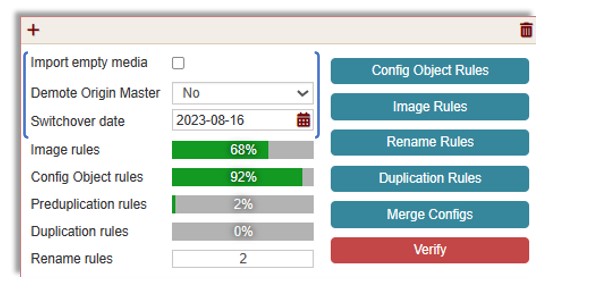

🛈 Modifying switchover date impacts data transfer and may result in expired images migrated to destination.

