Devices
From Tranzman Documentation
Contents
Device Management in Tranzman Appliance
Tranzman categorises devices into three types for migration and recovery operations.
Use the System → Devices section in the web console to manage Tape Libraries, Disk Libraries, and NAS Connectors.
Device Types
- Tape Library: Shares backup server tape library with Tranzman Server.
- Disk Library: Used for cross vendor migrations.
- NAS Connectors: Mount NFS/CFS shares for data recovery to files.
Adding Tape Devices
-
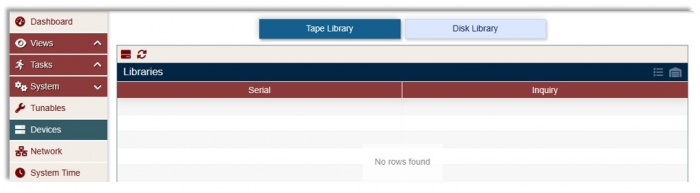
In the Tranzman web console, go to System → Devices. The Tape Library section is listed by default.
Click on
-
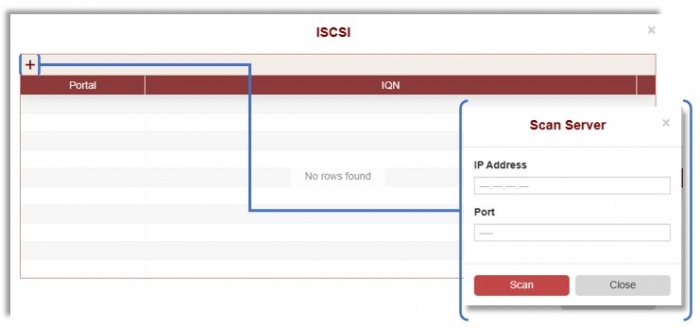
Click + and add the IP address and port number of the iSCSI Target.
Click the Scan icon.
-
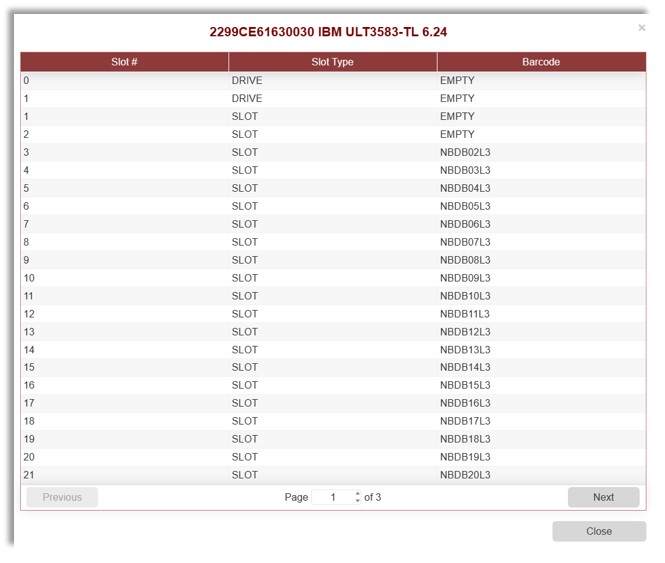
After scanning, perform an inventory of the Tape Library by clicking the Inventory button
 .
.
View results under Views .
.
-
Device information is displayed in a separate section, showing drive status, loaded media ID, drive name, etc.



Adding Disk Libraries
- In the Tranzman web console, navigate to System → Devices.
-
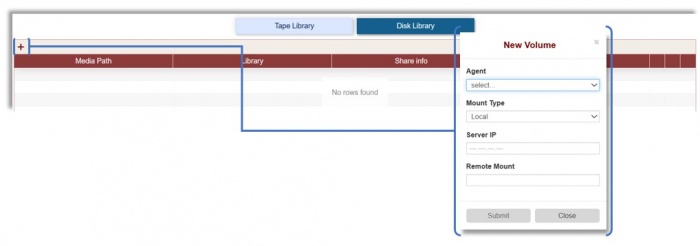
Click the Disk Library section and then the + icon to add a disk share (supports NFS, SMB, and local shares).
-
After adding, the disk share will be listed.



