Create Bootable TZM USB using Rufus
From Tranzman Documentation
Creating Bootable TZM Media from ISO Image
Follow these steps to create a bootable TZM USB from an ISO image.
A video tutorial is available at Tutorials.
Step-by-Step Guide
-
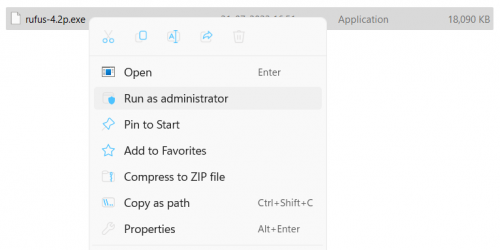
Download the Rufus application and launch it with administrator privileges.
-
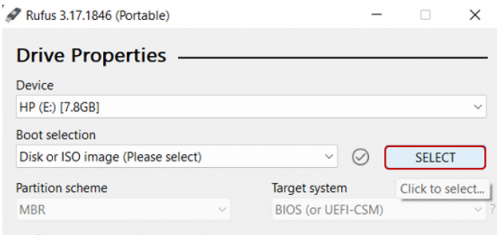
Click on the SELECT button to choose the TZM ISO image.
-
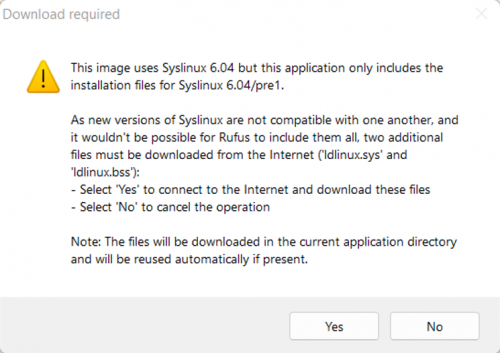
Click Yes to let Rufus automatically modify the settings to best match the ISO.
-
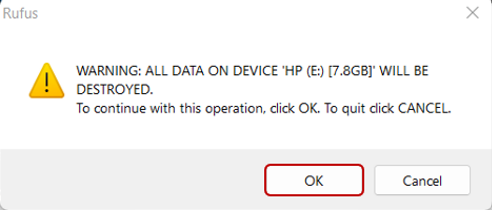
Click OK when prompted to start formatting the USB drive.
- Click CLOSE once the format completes and the USB is ready for use.


🛈 Ensure you backup any important data from the USB drive before formatting, as this process will erase all contents.

