Difference between revisions of "Deploy Patch"
From Tranzman Documentation
| Line 1: | Line 1: | ||
| − | + | __NOTOC__ | |
| − | + | <br> | |
| − | |||
| − | |||
| − | |||
| − | |||
<br> | <br> | ||
| − | + | <div style="background-color:#edf7ff; padding: 1.5rem; border-radius:8px; max-width:80%; margin: 0 auto; margin-bottom:2rem;"> | |
| − | + | <h1 style="border-bottom:none; font-size:2.5em; font-weight:bold; text-align:center;">Patch Deployment for Tranzman Appliance</h1> | |
| − | + | <p style="font-size:1.2em; text-align:left;"> | |
| − | < | + | <b>Tranzman</b> provides regular patches as part of continuous improvement and bug fixes.<br> |
| − | + | It is advised to check for new patches after deploying the Tranzman OVA to ensure your appliance is running the latest version. | |
| − | + | </p> | |
| − | + | </div> | |
| − | |||
| − | |||
| − | |||
| − | |||
| − | |||
| + | <div style="max-width:80%; margin: 0 auto;"> | ||
| + | <div style="background-color:#fffbf4; padding:1.5rem; border-radius:8px; box-shadow:0 2px 4px rgba(0,0,0,0.06); margin-bottom:2rem;"> | ||
| + | <h2 style="border-bottom:2px solid #ffe0b2; padding-bottom:0.5rem; font-size:1.5em;">Patch Deployment Steps</h2> | ||
| + | <ol style="font-size:1.1em; margin-left:2em;"> | ||
| + | <li> | ||
| + | Download the latest patch from Stone Ram [https://fileshare.stoneram.com fileshare] to a machine that can access the <b>Tranzman</b> webUI. | ||
| + | </li> | ||
| + | <li> | ||
| + | Navigate to <b>System → Patch Deployment</b> in the <b>Tranzman</b> UI and click the <b>Upload</b> icon. | ||
| + | </li> | ||
| + | <li> | ||
| + | In the pop-up menu, click <b>Choose File</b> and select the downloaded patch file.<br> | ||
| + | Click <b>Upload</b> and then <b>Done</b> to complete the upload.<br> | ||
| + | <div style="display:inline-block; box-shadow:5px 5px 10px grey; margin:1em 0;">[[File:Upload_Patch.jpg |700px]]</div> | ||
| + | </li> | ||
| + | <li> | ||
| + | The patch file will appear under <i>Available Patches</i>.<br> | ||
| + | Click the file, then click <b>Apply</b> to deploy the patch to <b>Tranzman</b>.<br> | ||
| + | <div style="display:inline-block; box-shadow:5px 5px 10px grey; margin:1em 0;">[[File:Deploy_Patch.jpg |700px]]</div> | ||
| + | </li> | ||
| + | </ol> | ||
| + | <div style="background-color:#f8e2b3; padding:0.2rem; border-radius:8px; box-shadow:0 2px 4px rgba(0,0,0,0.06); font-size:1em; margin: 0 auto;"> | ||
| + | <p>🛈 <i>Always check for the latest patches after installation to keep your appliance secure and up to date.<br> | ||
| + | It is recommended to use the latest TZM version and verify for any new patches before proceeding to the <b>Discovery</b> section.</i></p> | ||
| + | </div> | ||
| + | </div> | ||
| + | </div> | ||
| − | + | <div style="display:flex; justify-content:space-between; margin-top:2rem; padding:1rem; background-color:#ffffff; max-width:90%; margin: 2rem auto 0;"> | |
| − | + | <div style="text-align:left;"> | |
| − | + | [[Image:prev_icon.jpg|30px|link=Configuration]] [[Configuration|Previous]] | |
| − | + | </div> | |
| − | + | <div style="text-align:right;"> | |
| + | [[Image:next_icon.jpg|30px|link=Cross Vendor Migration]] [[Cross Vendor Migration|Next]] | ||
| + | </div> | ||
| + | </div> | ||
Latest revision as of 04:00, 12 September 2025
Patch Deployment for Tranzman Appliance
Tranzman provides regular patches as part of continuous improvement and bug fixes.
It is advised to check for new patches after deploying the Tranzman OVA to ensure your appliance is running the latest version.
Patch Deployment Steps
- Download the latest patch from Stone Ram fileshare to a machine that can access the Tranzman webUI.
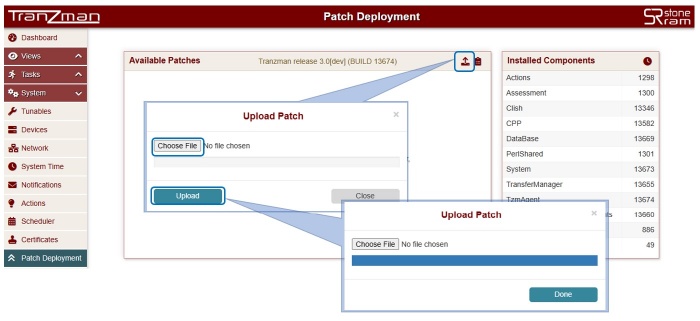
- Navigate to System → Patch Deployment in the Tranzman UI and click the Upload icon.
-
In the pop-up menu, click Choose File and select the downloaded patch file.
Click Upload and then Done to complete the upload.
-
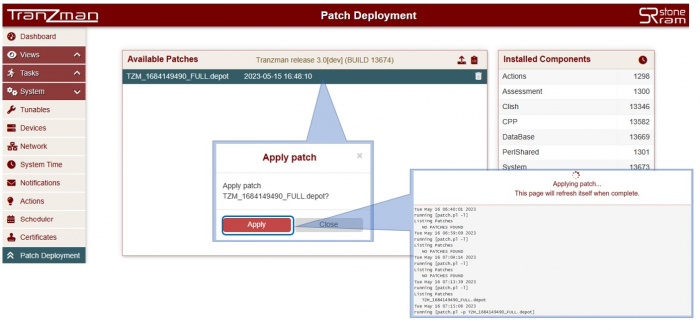
The patch file will appear under Available Patches.
Click the file, then click Apply to deploy the patch to Tranzman.


🛈 Always check for the latest patches after installation to keep your appliance secure and up to date.
It is recommended to use the latest TZM version and verify for any new patches before proceeding to the Discovery section.

