Difference between revisions of "Install TZM Server"
From Tranzman Documentation
(NNN) |
|||
| (85 intermediate revisions by 3 users not shown) | |||
| Line 1: | Line 1: | ||
| − | This section explains how to install the Tranzman Server from | + | __NOTOC__ |
| + | <br> | ||
| + | <br> | ||
| + | <div style="background-color:#edf7ff; padding: 1.5rem; border-radius:8px; max-width:80%; margin: 0 auto; margin-bottom:2rem;"> | ||
| + | <h1 style="border-bottom:none; font-size:2.5em; font-weight:bold; text-align:center;">Deploying Tranzman Appliance on Virtual/Physical Machine</h1> | ||
| + | <p style="font-size:1.2em; text-align:left;"> | ||
| + | This section explains how to install the Tranzman Server from ISO image provided by Stone Ram Ltd.<br> | ||
| + | Follow the steps below to deploy the appliance on a virtual or physical machine. | ||
| + | </p> | ||
| + | </div> | ||
| − | + | <div style="max-width:80%; margin: 0 auto;"> | |
| − | + | <div style="background-color:#fffbf4; padding:1.5rem; border-radius:8px; box-shadow:0 2px 4px rgba(0,0,0,0.06); margin-bottom:2rem;"> | |
| − | + | <h2 style="border-bottom:2px solid #ffe0b2; padding-bottom:0.5rem; font-size:1.5em;">Deployment Steps</h2> | |
| − | + | <ol style="font-size:1.1em; margin-left:2em;"> | |
| − | + | <li> | |
| − | + | Create a Virtual Machine in ESXi server by clicking on <b>Create/Register VM</b>.<br> | |
| + | <div style="display:inline-block; box-shadow:5px 5px 10px grey; margin:1em 0;">[[File:TZM_Server_newVM.jpg | 500px]]</div> | ||
| + | </li> | ||
| + | <li> | ||
| + | Select <b>Create a new virtual machine</b> and click <b>Next</b>. | ||
| + | </li> | ||
| + | <li> | ||
| + | In <b>Select a name and guest OS</b>, give a name to the VM and select appropriate OS type and version.<br> | ||
| + | <div style="display:inline-block; box-shadow:5px 5px 10px grey; margin:1em 0;">[[File:TZM_Server_selectOS.jpg | 500px]]</div> | ||
| + | </li> | ||
| + | <li> | ||
| + | Select the available storage from datastore and click on <b>Next</b>. | ||
| + | </li> | ||
| + | <li> | ||
| + | Select <b>Datastore ISO file</b> for CD/DVD Drive and choose the downloaded TZM ISO. Click <b>Next</b> and <b>Finish</b>. | ||
| + | </li> | ||
| + | <li> | ||
| + | <b>Power On</b> the created VM. | ||
| + | </li> | ||
| + | <li> | ||
| + | Accept the EULA. Use the <b>Page Down</b> key to scroll through the document. Press <b>Q</b> on the keyboard, followed by <b>Y</b> to accept the terms.<br> | ||
| + | <div style="display:inline-block; box-shadow:5px 5px 10px grey; margin:1em 0;">[[File:TZM_Server_EULA.jpg | 500px]]</div> | ||
| + | </li> | ||
| + | <li> | ||
| + | Select the base OS disk (<b>sda</b>) and wait for the OS installation. Reboot the machine after installation completes.<br> | ||
| + | <div style="display:inline-block; box-shadow:5px 5px 10px grey; margin:1em 0;">[[File:TZM_Server_selectdisk.jpg | 500px]]</div> | ||
| + | <div style="display:inline-block; box-shadow:5px 5px 10px grey; margin:1em 0;">[[File:TZM_Server_installOS.jpg | 500px]]</div> | ||
| + | </li> | ||
| + | <li> | ||
| + | The machine will look on the network for an available NTP and DHCP server.<br> | ||
| + | If you have a DHCP enabled environment and the machine is able to get an IP from DHCP Server, it will be displayed in the login screen.<br> | ||
| + | Use this IP for webUI login to continue with the <b>Configuration</b>.<br> | ||
| + | Otherwise, go to <b>Configure IP Network</b> to manually set an appliance IP.<br> | ||
| + | <div style="display:inline-block; box-shadow:5px 5px 10px grey; margin:1em 0;">[[File:TZM_Server_login.jpg | 500px]]</div> | ||
| + | </li> | ||
| + | </ol> | ||
| + | <div style="background-color:#f8e2b3; padding:0.2rem; border-radius:8px; box-shadow:0 2px 4px rgba(0,0,0,0.06); font-size:1em; margin: 0 auto;"> | ||
| + | <p>🛈 <i>For further configuration, refer to the <b>Configuration</b> section. If manual IP setup is required, see <b>Configure IP Network</b>.</i></p> | ||
| + | </div> | ||
| + | </div> | ||
| + | </div> | ||
| − | + | <div style="display:flex; justify-content:space-between; margin-top:2rem; padding:1rem; background-color:#ffffff; max-width:90%; margin: 2rem auto 0;"> | |
| − | + | <div style="text-align:left;"> | |
| − | + | [[File:prev_icon.jpg|30px|link=Installation]] [[Installation|Previous]] | |
| − | + | </div> | |
| + | <div style="text-align:right;"> | ||
| + | [[Install_TZM_Server_Using_OVA|Next]] [[File:next_icon.jpg|30px|link=Install_TZM_Server_Using_OVA]] | ||
| + | </div> | ||
| + | </div> | ||
Latest revision as of 00:11, 12 September 2025
Deploying Tranzman Appliance on Virtual/Physical Machine
This section explains how to install the Tranzman Server from ISO image provided by Stone Ram Ltd.
Follow the steps below to deploy the appliance on a virtual or physical machine.
Deployment Steps
-
Create a Virtual Machine in ESXi server by clicking on Create/Register VM.
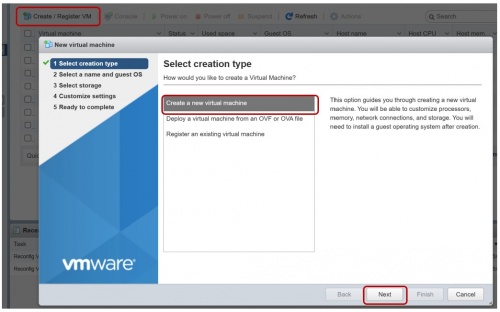
- Select Create a new virtual machine and click Next.
-
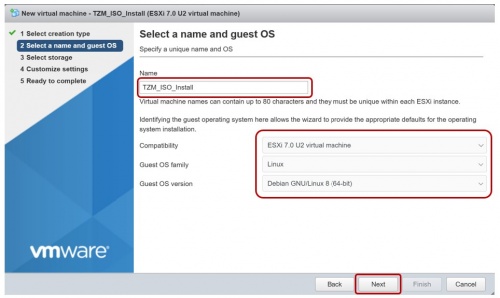
In Select a name and guest OS, give a name to the VM and select appropriate OS type and version.
- Select the available storage from datastore and click on Next.
- Select Datastore ISO file for CD/DVD Drive and choose the downloaded TZM ISO. Click Next and Finish.
- Power On the created VM.
-
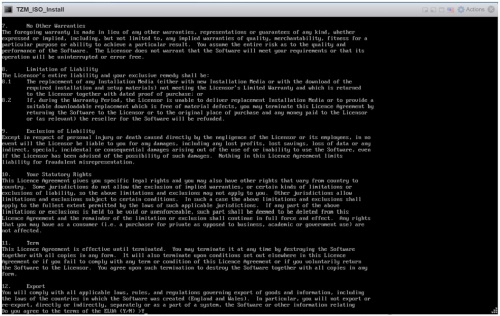
Accept the EULA. Use the Page Down key to scroll through the document. Press Q on the keyboard, followed by Y to accept the terms.
-
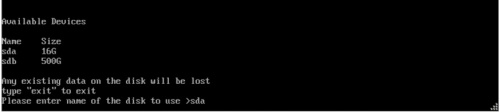
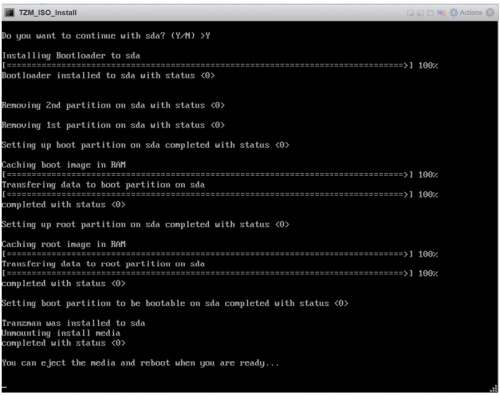
Select the base OS disk (sda) and wait for the OS installation. Reboot the machine after installation completes.
-
The machine will look on the network for an available NTP and DHCP server.
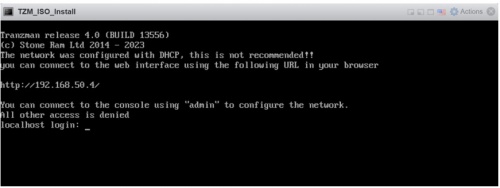
If you have a DHCP enabled environment and the machine is able to get an IP from DHCP Server, it will be displayed in the login screen.
Use this IP for webUI login to continue with the Configuration.
Otherwise, go to Configure IP Network to manually set an appliance IP.


🛈 For further configuration, refer to the Configuration section. If manual IP setup is required, see Configure IP Network.

