Difference between revisions of "Configure System Time"
From Tranzman Documentation
| Line 16: | Line 16: | ||
<b>Interface Timezone</b> allows to switch between the <b>Browser</b>(Local time) and <b>TZM Appliance</b> timezone. The difference is visible on <b>Views</b>-><b>Activities</b> Task logs timestamp. | <b>Interface Timezone</b> allows to switch between the <b>Browser</b>(Local time) and <b>TZM Appliance</b> timezone. The difference is visible on <b>Views</b>-><b>Activities</b> Task logs timestamp. | ||
| − | This concludes the configuration of Tranzman Appliance. | + | This concludes the configuration of Tranzman Appliance. However, it is recommended to use the latest TZM version and verify for any new patches before proceeding to [[Discovery | Discovery]] section |
Revision as of 05:42, 16 May 2023
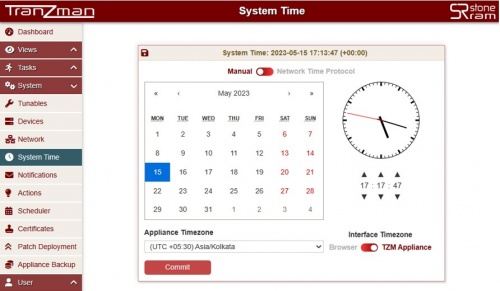
The System Time page allows to set TZM Appliance system date and time. It allows to use NTP Server or Manual for Date & Time configuration.
By default, Manual configuration is selected.
Manual: Select the date from the calender and update the time as needed using the UP/DOWN icons for Hours,Minutes and Seconds.
Update the Timezone by selecting appropriate timezone from drop down menu and click on Commit

Network Time Protocol: Update the NTP Server IP Address and click on Commit
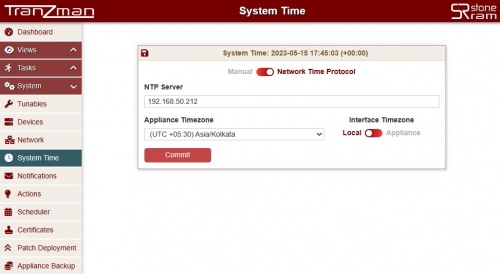

Interface Timezone allows to switch between the Browser(Local time) and TZM Appliance timezone. The difference is visible on Views->Activities Task logs timestamp.
This concludes the configuration of Tranzman Appliance. However, it is recommended to use the latest TZM version and verify for any new patches before proceeding to Discovery section
| Return to Previous | Go to Next |