Difference between revisions of "Configure System Time"
From Tranzman Documentation
| Line 6: | Line 6: | ||
<b>Manual</b>: Select the date from the calender and update the time as needed using the <b>UP/DOWN</b> icons for Hours,Minutes and Seconds. | <b>Manual</b>: Select the date from the calender and update the time as needed using the <b>UP/DOWN</b> icons for Hours,Minutes and Seconds. | ||
| − | Update the <b>Timezone</b> by selecting appropriate timezone from drop down menu | + | Update the <b>Timezone</b> by selecting appropriate timezone from drop down menu and click on <b>Commit</b> |
| + | |||
[[File:Timezone_manual.JPG |border|500px]] | [[File:Timezone_manual.JPG |border|500px]] | ||
| − | <b>Network Time Protocol</b>: Update the NTP Server IP Address | + | <b>Network Time Protocol</b>: Update the NTP Server IP Address and click on <b>Commit</b> |
[[File:Timezone_ntp.JPG |border|500px]] | [[File:Timezone_ntp.JPG |border|500px]] | ||
Revision as of 12:18, 15 May 2023
The System Time page allows to set TZM Appliance system date and time. It allows to use NTP Server or Manual for Date & Time configuration.
By default, Manual configuration is selected.
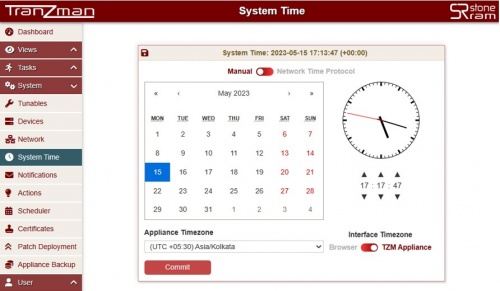
Manual: Select the date from the calender and update the time as needed using the UP/DOWN icons for Hours,Minutes and Seconds.
Update the Timezone by selecting appropriate timezone from drop down menu and click on Commit

Network Time Protocol: Update the NTP Server IP Address and click on Commit
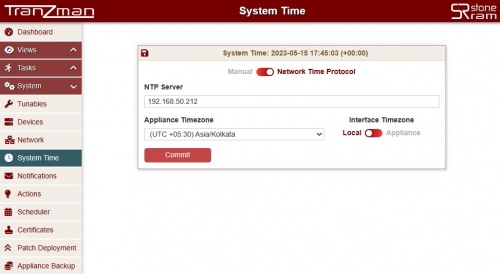

Interface Timezone allows to switch between the Browser(Local time) and TZM Appliance timezone. The difference is visible on Views->Activities Task logs timestamp.
This concludes the configuration of Tranzman Appliance.
| Return to Previous | Go to Next |