Difference between revisions of "Reporting and Logging"
From Tranzman Documentation
(→Media) |
|||
| (3 intermediate revisions by the same user not shown) | |||
| Line 1: | Line 1: | ||
| − | === | + | __TOC__ |
| − | <b>Tranzman</b> provides | + | <br> |
| − | + | <br> | |
| + | <div style="background-color:#edf7ff; padding: 1.5rem; border-radius:8px; max-width:80%; margin: 0 auto; margin-bottom:2rem;"> | ||
| + | <h1 style="border-bottom:none; font-size:2.5em; font-weight:bold; text-align:center;">Reporting & Logging in Tranzman Appliance</h1> | ||
| + | <p style="font-size:1.2em; text-align:left;"> | ||
| + | <b>Tranzman</b> provides extensive logging and reporting for all migration activities.<br> | ||
| + | Reports help track migration status, troubleshoot issues, and audit migrated components.<br> | ||
| + | Access reporting features from <b>Views → Reports</b> in the web console. | ||
| + | </p> | ||
| + | </div> | ||
| + | <div style="max-width:80%; margin: 0 auto;"> | ||
| + | <div style="background-color:#fffbf4; padding:1.5rem; border-radius:8px; box-shadow:0 2px 4px rgba(0,0,0,0.06); margin-bottom:2rem;"> | ||
| + | <h2 style="border-bottom:2px solid #ffe0b2; padding-bottom:0.5rem; font-size:1.5em;">Reports Overview</h2> | ||
| + | <ul style="font-size:1.1em; margin-left:2em;"> | ||
| + | <li> | ||
| + | <b>Reports</b> provide statistical charts on image catalog and related information.<br> | ||
| + | Reports are available for individual environments or as a collective view.<br> | ||
| + | Use the <b>Selections</b> button (top right) to filter charts. | ||
| + | </li> | ||
| + | <li> | ||
| + | <span style="vertical-align:middle;">[[File:ReportsFullSelections.jpg|100x100px]]</span> Charts for selected migration data.<br> | ||
| + | <span style="vertical-align:middle;">[[File:ReportsNoneSelections.jpg|100x100px]]</span> Charts for non-selected data.<br> | ||
| + | <span style="vertical-align:middle;">[[File:ReportsBothSelections.jpg|100x100px]]</span> Charts for both selected and non-selected data. | ||
| + | </li> | ||
| + | <li> | ||
| + | Example: Charts for selected data.<br> | ||
| + | <div style="display:inline-block; box-shadow:5px 5px 10px grey;">[[File:SelectedDataReports.jpg|700px]]</div> | ||
| + | </li> | ||
| + | <li> | ||
| + | <b>Summary</b> and <b>Environment History</b> reports are available.<br> | ||
| + | Click <span style="vertical-align:middle;">[[File:summary_report_icon.jpg | 25x25px]]</span> for Summary.<br> | ||
| + | <div style="display:inline-block; box-shadow:5px 5px 10px grey;">[[File:Reports_Summary_brief1.jpg|700px]]</div> | ||
| + | <div style="display:inline-block; box-shadow:5px 5px 10px grey;">[[File:Reports_Summary_envdetails.jpg|700px]]</div> | ||
| + | </li> | ||
| + | <li> | ||
| + | <b>Summary Report</b> shows: | ||
| + | <ul> | ||
| + | <li>Tranzman appliance state (e.g., configuration_migration, data_transfer, completion)</li> | ||
| + | <li>Agent connection status (RUNNING or STALLED)</li> | ||
| + | <li>Time since last agent connection</li> | ||
| + | <li>Agent role: Origin (O), Destination (D), finalized (Of/Df)</li> | ||
| + | </ul> | ||
| + | </li> | ||
| + | <li> | ||
| + | <b>Image State Details:</b> | ||
| + | <ul> | ||
| + | <li><b>data_expired</b>: Images expired</li> | ||
| + | <li><b>data_purged</b>: Images migrated to destination</li> | ||
| + | <li><b>deselected</b>: Images deselected (e.g., Catalog backup)</li> | ||
| + | <li><b>discovered</b>: Images discovered on server</li> | ||
| + | <li><b>export_complete</b>: Exported images</li> | ||
| + | <li><b>export_in_progress</b>: Export in progress</li> | ||
| + | <li><b>export_fatal</b>: Export failed (Origin troubleshooting)</li> | ||
| + | <li><b>manipulate_complete</b>: Images updated for import (stored on /data)</li> | ||
| + | <li><b>manipulate_in_progress</b>: Images being updated</li> | ||
| + | <li><b>import_complete</b>: Migrated images</li> | ||
| + | <li><b>import_in_progress</b>: Import in progress</li> | ||
| + | <li><b>import_fatal</b>: Import failed (Destination troubleshooting)</li> | ||
| + | </ul> | ||
| + | </li> | ||
| + | <li> | ||
| + | <b>Environment History:</b> Click <span style="vertical-align:middle;">[[File:Reports_env_history_icon.jpg | 15x15px]]</span> for environment history.<br> | ||
| + | <div style="display:inline-block; box-shadow:5px 5px 10px grey;">[[File:Reports_env_history.jpg |700px]]</div> | ||
| + | </li> | ||
| + | </ul> | ||
| + | </div> | ||
| − | === | + | <div style="background-color:#fef3f7; padding:1.5rem; border-radius:8px; box-shadow:0 2px 4px rgba(0,0,0,0.06); margin-bottom:2rem;"> |
| − | <b> | + | <h2 style="border-bottom:2px solid #f8bbd0; padding-bottom:0.5rem; font-size:1.5em;">Alerts & Activities</h2> |
| − | + | <ul style="font-size:1.1em; margin-left:2em;"> | |
| + | <li> | ||
| + | <b>Alerts:</b> View all issues identified during transition.<br> | ||
| + | Shows time, Task ID, category, and description.<br> | ||
| + | <div style="display:inline-block; box-shadow:5px 5px 10px grey;">[[File:Alerts_overview.jpg | 700px]]</div> | ||
| + | </li> | ||
| + | <li> | ||
| + | <b>Activities:</b> Shows all job information.<br> | ||
| + | Click a job for task details; download logs for troubleshooting.<br> | ||
| + | <div style="display:inline-block; box-shadow:5px 5px 10px grey;">[[File:Activities_task_details.jpg|700px]]</div> | ||
| + | </li> | ||
| + | </ul> | ||
| + | </div> | ||
| − | [[File: | + | <div style="background-color:#eff8f0; padding:1.5rem; border-radius:8px; box-shadow:0 2px 4px rgba(0,0,0,0.06); margin-bottom:2rem;"> |
| + | <h2 style="border-bottom:2px solid #c8e6c9; padding-bottom:0.5rem; font-size:1.5em;">Images Management</h2> | ||
| + | <ul style="font-size:1.1em; margin-left:2em;"> | ||
| + | <li> | ||
| + | View all discovered images for backup domains.<br> | ||
| + | Manipulate migration: ignore, reset, force import, etc.<br> | ||
| + | Click an image for details and audit stages.<br> | ||
| + | <div style="display:inline-block; box-shadow:5px 5px 10px grey;">[[File:Images_task_logs.jpg|700px]]</div> | ||
| + | </li> | ||
| + | <li> | ||
| + | Image actions: | ||
| + | <ul> | ||
| + | <li>[[File:Hostmanagement_actions_origintest.jpg|15x15px]] Refresh images</li> | ||
| + | <li>[[File:Images_ignore_icon.jpg|15x15px]] Ignore (mark as <b>Deselected</b>)</li> | ||
| + | <li>[[File:Images_reset_icon.jpg|15x15px]] Reset state to <b>Selected</b> or <b>Discovered</b></li> | ||
| + | <li>[[File:Images_import_icon.jpg|15x15px]] Force import</li> | ||
| + | <li>[[File:Hostmanagement_operations_download.jpg|15x15px]] Download as CSV</li> | ||
| + | <li>[[File:Hostmanagement_operations_upload.jpg|15x15px]] Upload custom image list</li> | ||
| + | </ul> | ||
| + | </li> | ||
| + | <li> | ||
| + | Filters: Origin, Destination, Policy Type, State, Category, and custom text.<br> | ||
| + | All dropdowns support multi-selection; default is no filter. | ||
| + | </li> | ||
| + | </ul> | ||
| + | </div> | ||
| − | + | <div style="background-color:#fffbf4; padding:1.5rem; border-radius:8px; box-shadow:0 2px 4px rgba(0,0,0,0.06); margin-bottom:2rem;"> | |
| − | + | <h2 style="border-bottom:2px solid #ffe0b2; padding-bottom:0.5rem; font-size:1.5em;">Media Management</h2> | |
| − | + | <ul style="font-size:1.1em; margin-left:2em;"> | |
| − | + | <li> | |
| − | + | Access media info under <b>Views → Media</b>.<br> | |
| − | + | Filter media as needed.<br> | |
| − | + | <div style="display:inline-block; box-shadow:5px 5px 10px grey;">[[File:Media_task_details.jpg|700px]]</div> | |
| − | + | </li> | |
| − | + | <li> | |
| − | + | <b>Media Report:</b> | |
| − | = | + | <pre style="background:#fff; color:#333; border-radius:5px; box-shadow:5px 5px 10px grey; padding:1em;"> |
| − | |||
| − | |||
| − | |||
| − | |||
| − | |||
| − | |||
| − | |||
| − | |||
| − | |||
| − | |||
| − | |||
| − | |||
| − | |||
| − | |||
| − | |||
| − | |||
| − | |||
| − | |||
| − | |||
| − | |||
| − | |||
| − | |||
| − | |||
| − | |||
| − | |||
| − | |||
| − | |||
| − | |||
| − | |||
| − | |||
| − | |||
| − | |||
| − | |||
| − | |||
| − | |||
| − | |||
| − | |||
| − | |||
| − | |||
| − | |||
| − | |||
| − | |||
| − | |||
| − | = | ||
| − | |||
| − | |||
| − | |||
| − | |||
| − | |||
| − | |||
| − | |||
| − | |||
| − | |||
| − | |||
| − | |||
| − | |||
| − | |||
| − | |||
| − | |||
| − | |||
| − | |||
| − | |||
| − | |||
| − | |||
| − | |||
| − | |||
| − | |||
| − | |||
| − | |||
| − | |||
| − | < | ||
| − | |||
| − | |||
---------- MEDIA REPORT ---------- | ---------- MEDIA REPORT ---------- | ||
| − | |||
name: NBDB05 | name: NBDB05 | ||
state: finalized | state: finalized | ||
cep: C0A83217 | cep: C0A83217 | ||
images: 2 | images: 2 | ||
| − | </pre> | + | </pre> |
| − | </ | + | </li> |
| − | < | + | <li> |
| − | + | <b>Images in Media:</b> | |
| − | + | <pre style="background:#fff; color:#333; border-radius:5px; box-shadow:5px 5px 10px grey; padding:1em;"> | |
| − | < | ||
| − | |||
| − | |||
---------- CONTAINS THESE BACKUP IMAGES ---------- | ---------- CONTAINS THESE BACKUP IMAGES ---------- | ||
| − | |||
qa-nbu812-o-lnx-g-e2e.devs.com_1692928837 | qa-nbu812-o-lnx-g-e2e.devs.com_1692928837 | ||
qa-nbu812-o-lnx-g-e2e.devs.com_1692928878 | qa-nbu812-o-lnx-g-e2e.devs.com_1692928878 | ||
| − | + | </pre> | |
| − | </pre> | + | </li> |
| − | </ | + | <li> |
| − | </ | + | <b>Media Property Differences:</b> |
| − | + | <pre style="background:#fff; color:#333; border-radius:5px; box-shadow:5px 5px 10px grey; padding:1em;"> | |
| − | |||
| − | < | ||
| − | |||
| − | |||
---------- MEDIA PROPERTY DIFFERENCES ---------- | ---------- MEDIA PROPERTY DIFFERENCES ---------- | ||
| − | |||
KeyWord qa-nbu812-o-lnx-g-e2e.devs.com qa-nbu83-d-lnx-g-e2e.devs.com | KeyWord qa-nbu812-o-lnx-g-e2e.devs.com qa-nbu83-d-lnx-g-e2e.devs.com | ||
------------------------ ------------------------------ ------------------------------ | ------------------------ ------------------------------ ------------------------------ | ||
AssignedDateTime 2023-08-25 02:00:37.000000 1970-01-01 00:00:00.000000 | AssignedDateTime 2023-08-25 02:00:37.000000 1970-01-01 00:00:00.000000 | ||
| − | + | ... | |
| − | + | </pre> | |
| − | + | </li> | |
| − | + | <li> | |
| − | + | <b>Rules Applied in Media:</b> | |
| − | + | <pre style="background:#fff; color:#333; border-radius:5px; box-shadow:5px 5px 10px grey; padding:1em;"> | |
| − | |||
| − | |||
| − | |||
| − | |||
| − | |||
| − | |||
| − | |||
| − | |||
| − | |||
| − | |||
| − | |||
| − | |||
| − | |||
| − | |||
| − | </pre> | ||
| − | </ | ||
| − | < | ||
| − | |||
| − | |||
| − | < | ||
| − | |||
| − | |||
| − | |||
---------- RULES ---------- | ---------- RULES ---------- | ||
| − | |||
TYP| RULE ID| MAP ID| ORIG| DEST|ORDER| CRITERIA|OPERATION| MATCH| RESIDENCE| DEVICE | TYP| RULE ID| MAP ID| ORIG| DEST|ORDER| CRITERIA|OPERATION| MATCH| RESIDENCE| DEVICE | ||
EME| 3| 2| C0A83217| C0A83273|10001| all| =| all| N/A| N/A | EME| 3| 2| C0A83217| C0A83273|10001| all| =| all| N/A| N/A | ||
---------------------------------------------------------------------------------- | ---------------------------------------------------------------------------------- | ||
| − | </pre> | + | </pre> |
| − | </ | + | </li> |
| − | </ | + | <li> |
| − | + | <b>Media State Audit:</b> | |
| − | + | <pre style="background:#fff; color:#333; border-radius:5px; box-shadow:5px 5px 10px grey; padding:1em;"> | |
| − | < | ||
| − | |||
-------------------------- | -------------------------- | ||
Media state audit: | Media state audit: | ||
| Line 175: | Line 167: | ||
State: [imported] | State: [imported] | ||
Reason: [Changed to imported] | Reason: [Changed to imported] | ||
| − | + | ... | |
| − | + | </pre> | |
| − | + | </li> | |
| − | + | <li> | |
| − | + | Media actions: | |
| − | + | <ul> | |
| − | + | <li>[[File:Hostmanagement_actions_origintest.jpg|15x15px]] Refresh</li> | |
| − | + | <li>[[File:Images_ignore_icon.jpg|15x15px]] Ignore (mark as <b>Deselected</b>)</li> | |
| − | + | <li>[[File:Images_reset_icon.jpg|15x15px]] Reset state</li> | |
| − | + | <li>[[File:Images_import_icon.jpg|15x15px]] Force import (after manual resolution)</li> | |
| − | + | <li>[[File:Hostmanagement_operations_download.jpg|15x15px]] Download as CSV</li> | |
| − | + | </ul> | |
| − | + | </li> | |
| − | + | </ul> | |
| − | + | </div> | |
| − | |||
| − | |||
| − | |||
| − | |||
| − | |||
| − | |||
| − | |||
| − | |||
| − | |||
| − | |||
| − | </pre> | ||
| − | </ | ||
| − | < | ||
| − | |||
| − | |||
| − | |||
| − | |||
| − | |||
| − | |||
| − | |||
| − | |||
| − | |||
| − | |||
| − | |||
| − | |||
| − | |||
| − | |||
| − | |||
| − | |||
| − | |||
| − | |||
| − | < | ||
| − | |||
| − | |||
| − | |||
| − | |||
| − | |||
| − | |||
| − | |||
| − | |||
| − | |||
| − | |||
| − | |||
| − | |||
| − | |||
| − | |||
| − | |||
| − | |||
| − | |||
| − | |||
| − | |||
| − | |||
| − | |||
| − | |||
| − | |||
| − | |||
| − | |||
| − | |||
| − | |||
| − | |||
| − | |||
| − | |||
| − | |||
| − | |||
| − | |||
| − | |||
| − | |||
| − | |||
| − | |||
| − | |||
| − | |||
| − | |||
| − | |||
| − | |||
| − | |||
| − | |||
| − | |||
| − | |||
| − | |||
| − | |||
| − | |||
| − | |||
| − | |||
| − | |||
| − | |||
| − | |||
| + | <div style="background-color:#eff8f0; padding:1.5rem; border-radius:8px; box-shadow:0 2px 4px rgba(0,0,0,0.06); margin-bottom:2rem;"> | ||
| + | <h2 style="border-bottom:2px solid #c8e6c9; padding-bottom:0.5rem; font-size:1.5em;">Config Objects</h2> | ||
| + | <ul style="font-size:1.1em; margin-left:2em;"> | ||
| + | <li> | ||
| + | Lists all available configuration objects for migration.<br> | ||
| + | Shows status: selected, deselected, imported, not selected.<br> | ||
| + | Filter options available under <b>Views → Config Objects</b>. | ||
| + | </li> | ||
| + | <li> | ||
| + | <b>States:</b> | ||
| + | <ul> | ||
| + | <li><b>deselected</b>: Excluded by rules in Selections</li> | ||
| + | <li><b>exported</b>: Available on Origin</li> | ||
| + | <li><b>imported</b>: Migrated to Destination</li> | ||
| + | <li><b>not selected</b>: Auto-selected, not in rules</li> | ||
| + | <li><b>selected</b>: Selected via Selections or Rules</li> | ||
| + | </ul> | ||
| + | </li> | ||
| + | </ul> | ||
| + | </div> | ||
| + | </div> | ||
| − | + | <div style="display:flex; justify-content:space-between; margin-top:2rem; padding:1rem; background-color:#ffffff; max-width:90%; margin: 2rem auto 0;"> | |
| − | + | <div style="text-align:left;"> | |
| − | + | [[Image:prev_icon.jpg|30px|link=Manage_Hosts]] [[Manage_Hosts|Previous]] | |
| − | | | + | </div> |
| − | + | <div style="text-align:right;"> | |
| + | [[Finalize|Next]] [[Image:next_icon.jpg|30px|link=Finalize]] | ||
| + | </div> | ||
| + | </div> | ||
Latest revision as of 09:28, 12 September 2025
Contents
Reporting & Logging in Tranzman Appliance
Tranzman provides extensive logging and reporting for all migration activities.
Reports help track migration status, troubleshoot issues, and audit migrated components.
Access reporting features from Views → Reports in the web console.
Reports Overview
-
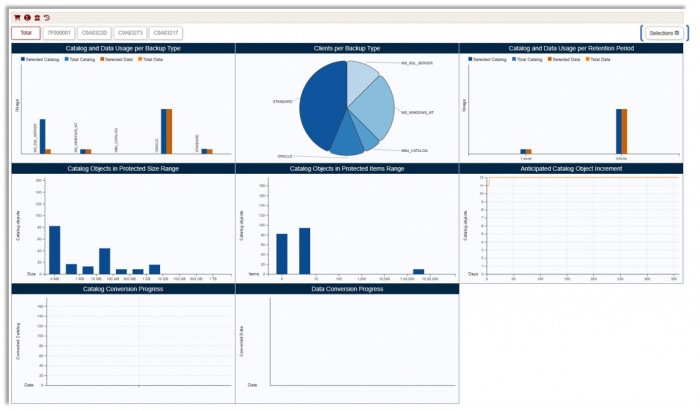
Reports provide statistical charts on image catalog and related information.
Reports are available for individual environments or as a collective view.
Use the Selections button (top right) to filter charts. -
 Charts for selected migration data.
 Charts for non-selected data.
 Charts for both selected and non-selected data.
-
Example: Charts for selected data.
-
Summary and Environment History reports are available.
Click for Summary.
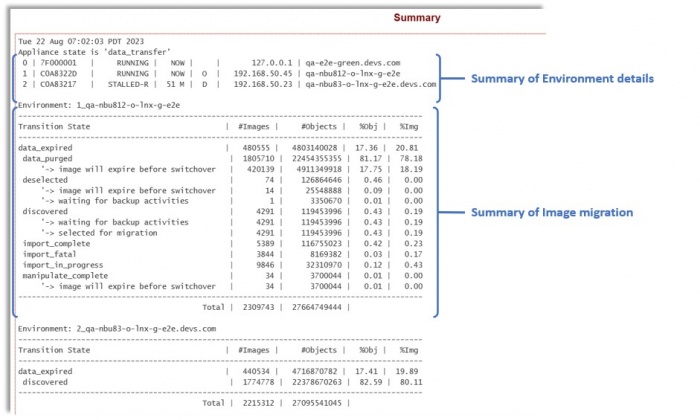
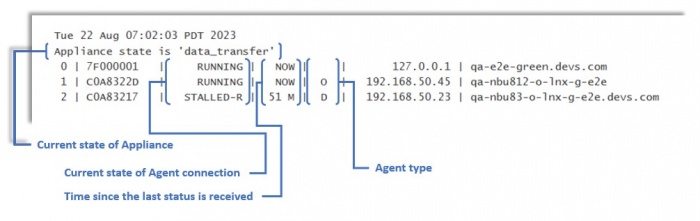
-
Summary Report shows:
- Tranzman appliance state (e.g., configuration_migration, data_transfer, completion)
- Agent connection status (RUNNING or STALLED)
- Time since last agent connection
- Agent role: Origin (O), Destination (D), finalized (Of/Df)
-
Image State Details:
- data_expired: Images expired
- data_purged: Images migrated to destination
- deselected: Images deselected (e.g., Catalog backup)
- discovered: Images discovered on server
- export_complete: Exported images
- export_in_progress: Export in progress
- export_fatal: Export failed (Origin troubleshooting)
- manipulate_complete: Images updated for import (stored on /data)
- manipulate_in_progress: Images being updated
- import_complete: Migrated images
- import_in_progress: Import in progress
- import_fatal: Import failed (Destination troubleshooting)
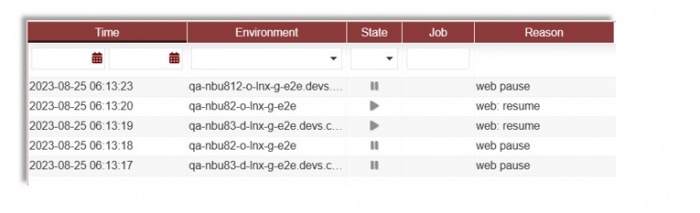
-
Environment History: Click
 for environment history.


Alerts & Activities
-
Alerts: View all issues identified during transition.
Shows time, Task ID, category, and description.
-
Activities: Shows all job information.
Click a job for task details; download logs for troubleshooting.
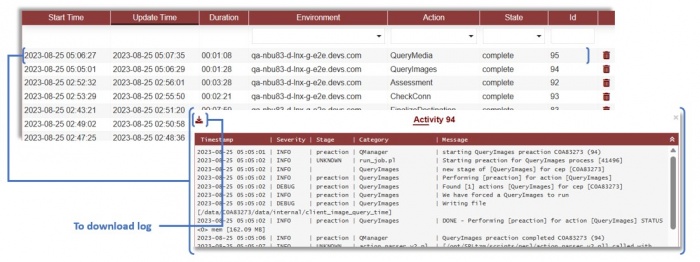

Images Management
-
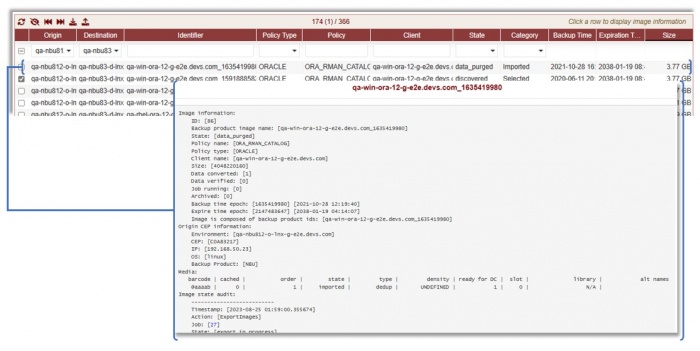
View all discovered images for backup domains.
Manipulate migration: ignore, reset, force import, etc.
Click an image for details and audit stages.
-
Image actions:
 Refresh images
 Ignore (mark as Deselected)
 Reset state to Selected or Discovered
 Force import
 Download as CSV
 Upload custom image list
-
Filters: Origin, Destination, Policy Type, State, Category, and custom text.
All dropdowns support multi-selection; default is no filter.


Media Management
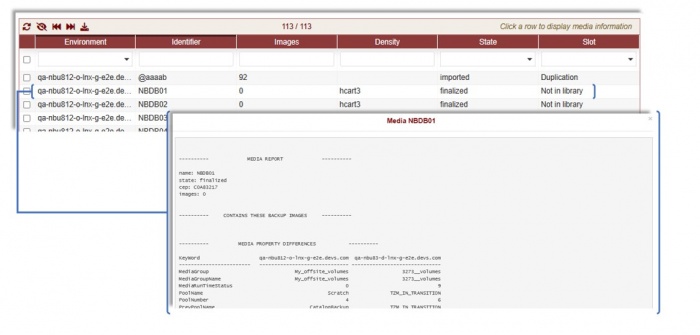
-
Access media info under Views → Media.
Filter media as needed.
-
Media Report:
---------- MEDIA REPORT ---------- name: NBDB05 state: finalized cep: C0A83217 images: 2 -
Images in Media:
---------- CONTAINS THESE BACKUP IMAGES ---------- qa-nbu812-o-lnx-g-e2e.devs.com_1692928837 qa-nbu812-o-lnx-g-e2e.devs.com_1692928878 -
Media Property Differences:
---------- MEDIA PROPERTY DIFFERENCES ---------- KeyWord qa-nbu812-o-lnx-g-e2e.devs.com qa-nbu83-d-lnx-g-e2e.devs.com ------------------------ ------------------------------ ------------------------------ AssignedDateTime 2023-08-25 02:00:37.000000 1970-01-01 00:00:00.000000 ... -
Rules Applied in Media:
---------- RULES ---------- TYP| RULE ID| MAP ID| ORIG| DEST|ORDER| CRITERIA|OPERATION| MATCH| RESIDENCE| DEVICE EME| 3| 2| C0A83217| C0A83273|10001| all| =| all| N/A| N/A ---------------------------------------------------------------------------------- -
Media State Audit:
-------------------------- Media state audit: -------------------------- Timestamp: [2023-08-25 02:07:18.879454] Action: [CreateMedia] Job: [38] State: [imported] Reason: [Changed to imported] ... -
Media actions:
- Refresh
- Ignore (mark as Deselected)
- Reset state
- Force import (after manual resolution)
- Download as CSV

Config Objects
-
Lists all available configuration objects for migration.
Shows status: selected, deselected, imported, not selected.
Filter options available under Views → Config Objects. -
States:
- deselected: Excluded by rules in Selections
- exported: Available on Origin
- imported: Migrated to Destination
- not selected: Auto-selected, not in rules
- selected: Selected via Selections or Rules


