Difference between revisions of "Configure System Time"
From Tranzman Documentation
| (10 intermediate revisions by the same user not shown) | |||
| Line 1: | Line 1: | ||
| − | |||
__NOTOC__ | __NOTOC__ | ||
| − | + | <br> | |
| + | <br> | ||
| + | <div style="background-color:#edf7ff; padding: 1.5rem; border-radius:8px; max-width:80%; margin: 0 auto; margin-bottom:2rem;"> | ||
| + | <h1 style="border-bottom:none; font-size:2.5em; font-weight:bold; text-align:center;">System Time Configuration for Tranzman Appliance</h1> | ||
| + | <p style="font-size:1.2em; text-align:left;"> | ||
| + | The <b>System Time</b> page allows you to set the Tranzman Appliance system date and time.<br> | ||
| + | You can use either <b>NTP Server</b> or <b>Manual</b> configuration for date and time. | ||
| + | </p> | ||
| + | </div> | ||
| − | + | <div style="max-width:80%; margin: 0 auto;"> | |
| + | <div style="background-color:#fffbf4; padding:1.5rem; border-radius:8px; box-shadow:0 2px 4px rgba(0,0,0,0.06); margin-bottom:2rem;"> | ||
| + | <h2 style="border-bottom:2px solid #ffe0b2; padding-bottom:0.5rem; font-size:1.5em;">Date & Time Setup Options</h2> | ||
| + | <ul style="font-size:1.1em; margin-left:2em;"> | ||
| + | <li> | ||
| + | <b>Manual Configuration</b><br> | ||
| + | By default, <b>Manual</b> configuration is selected.<br> | ||
| + | Select the date from the calendar and update the time using the <b>UP/DOWN</b> icons for hours, minutes, and seconds.<br> | ||
| + | Update the <b>Timezone</b> by selecting the appropriate time zone from the drop-down menu and click <b>Commit</b>.<br> | ||
| + | <div style="display:inline-block; box-shadow:5px 5px 10px grey; margin:1em 0;">[[File:Timezone_manual.JPG |700px]]</div> | ||
| + | </li> | ||
| + | <li> | ||
| + | <b>Network Time Protocol (NTP)</b><br> | ||
| + | Enter the NTP Server IP address and click <b>Commit</b> to synchronize the appliance time.<br> | ||
| + | <div style="display:inline-block; box-shadow:5px 5px 10px grey; margin:1em 0;">[[File:Timezone_ntp.JPG |700px]]</div> | ||
| + | </li> | ||
| + | <li> | ||
| + | <b>Interface Timezone</b><br> | ||
| + | Allows switching between <b>Browser</b> (local time) and <b>TZM Appliance</b> time zone.<br> | ||
| + | The difference is visible on <b>Views → Activities</b> task logs timestamp. | ||
| + | </li> | ||
| + | </ul> | ||
| − | + | </div> | |
| + | </div> | ||
| − | + | <div style="display:flex; justify-content:space-between; margin-top:2rem; padding:1rem; background-color:#ffffff; max-width:90%; margin: 2rem auto 0;"> | |
| − | + | <div style="text-align:left;"> | |
| − | + | [[Image:prev_icon.jpg|30px|link=Configure_Network]] [[Configure_Network|Previous]] | |
| − | + | </div> | |
| − | [[ | + | <div style="text-align:right;"> |
| − | + | [[Image:next_icon.jpg|30px|link=Deploy_Patch]] [[Deploy_Patch|Next]] | |
| − | = | + | </div> |
| − | + | </div> | |
| − | |||
| − | |||
| − | [[ | ||
| − | |||
| − | |||
| − | |||
| − | |||
| − | |||
| − | [[ | ||
| − | |||
| − | |||
Latest revision as of 03:57, 12 September 2025
System Time Configuration for Tranzman Appliance
The System Time page allows you to set the Tranzman Appliance system date and time.
You can use either NTP Server or Manual configuration for date and time.
Date & Time Setup Options
-
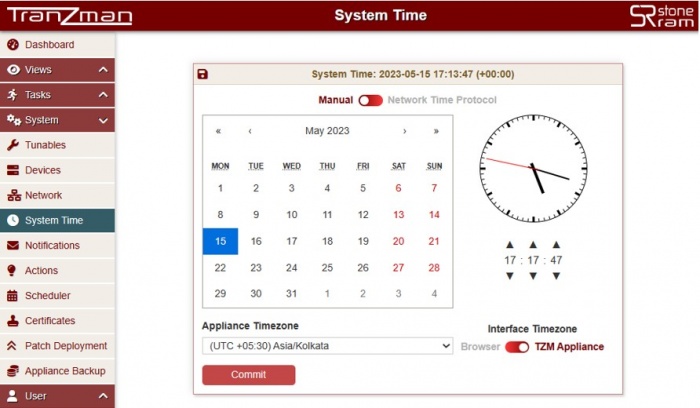
Manual Configuration
By default, Manual configuration is selected.
Select the date from the calendar and update the time using the UP/DOWN icons for hours, minutes, and seconds.
Update the Timezone by selecting the appropriate time zone from the drop-down menu and click Commit.
-
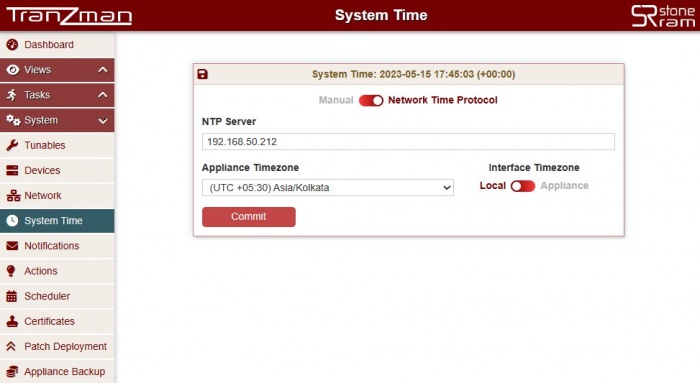
Network Time Protocol (NTP)
Enter the NTP Server IP address and click Commit to synchronize the appliance time.
-
Interface Timezone
Allows switching between Browser (local time) and TZM Appliance time zone.
The difference is visible on Views → Activities task logs timestamp.


