Difference between revisions of "Reporting and Logging"
From Tranzman Documentation
(Created page with "In terms of reporting and logging Tranzman has categorised them in to five sections which can be viewed when you click on <b>Views</b> on <b>Tranzman UI</b> on the sidebar. [...") |
|||
| (46 intermediate revisions by 3 users not shown) | |||
| Line 1: | Line 1: | ||
| − | + | __TOC__ | |
| + | <br> | ||
| + | <br> | ||
| + | <div style="background-color:#edf7ff; padding: 1.5rem; border-radius:8px; max-width:80%; margin: 0 auto; margin-bottom:2rem;"> | ||
| + | <h1 style="border-bottom:none; font-size:2.5em; font-weight:bold; text-align:center;">Reporting & Logging in Tranzman Appliance</h1> | ||
| + | <p style="font-size:1.2em; text-align:left;"> | ||
| + | <b>Tranzman</b> provides extensive logging and reporting for all migration activities.<br> | ||
| + | Reports help track migration status, troubleshoot issues, and audit migrated components.<br> | ||
| + | Access reporting features from <b>Views → Reports</b> in the web console. | ||
| + | </p> | ||
| + | </div> | ||
| − | [[File: | + | <div style="max-width:80%; margin: 0 auto;"> |
| + | <div style="background-color:#fffbf4; padding:1.5rem; border-radius:8px; box-shadow:0 2px 4px rgba(0,0,0,0.06); margin-bottom:2rem;"> | ||
| + | <h2 style="border-bottom:2px solid #ffe0b2; padding-bottom:0.5rem; font-size:1.5em;">Reports Overview</h2> | ||
| + | <ul style="font-size:1.1em; margin-left:2em;"> | ||
| + | <li> | ||
| + | <b>Reports</b> provide statistical charts on image catalog and related information.<br> | ||
| + | Reports are available for individual environments or as a collective view.<br> | ||
| + | Use the <b>Selections</b> button (top right) to filter charts. | ||
| + | </li> | ||
| + | <li> | ||
| + | <span style="vertical-align:middle;">[[File:ReportsFullSelections.jpg|100x100px]]</span> Charts for selected migration data.<br> | ||
| + | <span style="vertical-align:middle;">[[File:ReportsNoneSelections.jpg|100x100px]]</span> Charts for non-selected data.<br> | ||
| + | <span style="vertical-align:middle;">[[File:ReportsBothSelections.jpg|100x100px]]</span> Charts for both selected and non-selected data. | ||
| + | </li> | ||
| + | <li> | ||
| + | Example: Charts for selected data.<br> | ||
| + | <div style="display:inline-block; box-shadow:5px 5px 10px grey;">[[File:SelectedDataReports.jpg|700px]]</div> | ||
| + | </li> | ||
| + | <li> | ||
| + | <b>Summary</b> and <b>Environment History</b> reports are available.<br> | ||
| + | Click <span style="vertical-align:middle;">[[File:summary_report_icon.jpg | 25x25px]]</span> for Summary.<br> | ||
| + | <div style="display:inline-block; box-shadow:5px 5px 10px grey;">[[File:Reports_Summary_brief1.jpg|700px]]</div> | ||
| + | <div style="display:inline-block; box-shadow:5px 5px 10px grey;">[[File:Reports_Summary_envdetails.jpg|700px]]</div> | ||
| + | </li> | ||
| + | <li> | ||
| + | <b>Summary Report</b> shows: | ||
| + | <ul> | ||
| + | <li>Tranzman appliance state (e.g., configuration_migration, data_transfer, completion)</li> | ||
| + | <li>Agent connection status (RUNNING or STALLED)</li> | ||
| + | <li>Time since last agent connection</li> | ||
| + | <li>Agent role: Origin (O), Destination (D), finalized (Of/Df)</li> | ||
| + | </ul> | ||
| + | </li> | ||
| + | <li> | ||
| + | <b>Image State Details:</b> | ||
| + | <ul> | ||
| + | <li><b>data_expired</b>: Images expired</li> | ||
| + | <li><b>data_purged</b>: Images migrated to destination</li> | ||
| + | <li><b>deselected</b>: Images deselected (e.g., Catalog backup)</li> | ||
| + | <li><b>discovered</b>: Images discovered on server</li> | ||
| + | <li><b>export_complete</b>: Exported images</li> | ||
| + | <li><b>export_in_progress</b>: Export in progress</li> | ||
| + | <li><b>export_fatal</b>: Export failed (Origin troubleshooting)</li> | ||
| + | <li><b>manipulate_complete</b>: Images updated for import (stored on /data)</li> | ||
| + | <li><b>manipulate_in_progress</b>: Images being updated</li> | ||
| + | <li><b>import_complete</b>: Migrated images</li> | ||
| + | <li><b>import_in_progress</b>: Import in progress</li> | ||
| + | <li><b>import_fatal</b>: Import failed (Destination troubleshooting)</li> | ||
| + | </ul> | ||
| + | </li> | ||
| + | <li> | ||
| + | <b>Environment History:</b> Click <span style="vertical-align:middle;">[[File:Reports_env_history_icon.jpg | 15x15px]]</span> for environment history.<br> | ||
| + | <div style="display:inline-block; box-shadow:5px 5px 10px grey;">[[File:Reports_env_history.jpg |700px]]</div> | ||
| + | </li> | ||
| + | </ul> | ||
| + | </div> | ||
| + | |||
| + | <div style="background-color:#fef3f7; padding:1.5rem; border-radius:8px; box-shadow:0 2px 4px rgba(0,0,0,0.06); margin-bottom:2rem;"> | ||
| + | <h2 style="border-bottom:2px solid #f8bbd0; padding-bottom:0.5rem; font-size:1.5em;">Alerts & Activities</h2> | ||
| + | <ul style="font-size:1.1em; margin-left:2em;"> | ||
| + | <li> | ||
| + | <b>Alerts:</b> View all issues identified during transition.<br> | ||
| + | Shows time, Task ID, category, and description.<br> | ||
| + | <div style="display:inline-block; box-shadow:5px 5px 10px grey;">[[File:Alerts_overview.jpg | 700px]]</div> | ||
| + | </li> | ||
| + | <li> | ||
| + | <b>Activities:</b> Shows all job information.<br> | ||
| + | Click a job for task details; download logs for troubleshooting.<br> | ||
| + | <div style="display:inline-block; box-shadow:5px 5px 10px grey;">[[File:Activities_task_details.jpg|700px]]</div> | ||
| + | </li> | ||
| + | </ul> | ||
| + | </div> | ||
| + | |||
| + | <div style="background-color:#eff8f0; padding:1.5rem; border-radius:8px; box-shadow:0 2px 4px rgba(0,0,0,0.06); margin-bottom:2rem;"> | ||
| + | <h2 style="border-bottom:2px solid #c8e6c9; padding-bottom:0.5rem; font-size:1.5em;">Images Management</h2> | ||
| + | <ul style="font-size:1.1em; margin-left:2em;"> | ||
| + | <li> | ||
| + | View all discovered images for backup domains.<br> | ||
| + | Manipulate migration: ignore, reset, force import, etc.<br> | ||
| + | Click an image for details and audit stages.<br> | ||
| + | <div style="display:inline-block; box-shadow:5px 5px 10px grey;">[[File:Images_task_logs.jpg|700px]]</div> | ||
| + | </li> | ||
| + | <li> | ||
| + | Image actions: | ||
| + | <ul> | ||
| + | <li>[[File:Hostmanagement_actions_origintest.jpg|15x15px]] Refresh images</li> | ||
| + | <li>[[File:Images_ignore_icon.jpg|15x15px]] Ignore (mark as <b>Deselected</b>)</li> | ||
| + | <li>[[File:Images_reset_icon.jpg|15x15px]] Reset state to <b>Selected</b> or <b>Discovered</b></li> | ||
| + | <li>[[File:Images_import_icon.jpg|15x15px]] Force import</li> | ||
| + | <li>[[File:Hostmanagement_operations_download.jpg|15x15px]] Download as CSV</li> | ||
| + | <li>[[File:Hostmanagement_operations_upload.jpg|15x15px]] Upload custom image list</li> | ||
| + | </ul> | ||
| + | </li> | ||
| + | <li> | ||
| + | Filters: Origin, Destination, Policy Type, State, Category, and custom text.<br> | ||
| + | All dropdowns support multi-selection; default is no filter. | ||
| + | </li> | ||
| + | </ul> | ||
| + | </div> | ||
| + | |||
| + | <div style="background-color:#fffbf4; padding:1.5rem; border-radius:8px; box-shadow:0 2px 4px rgba(0,0,0,0.06); margin-bottom:2rem;"> | ||
| + | <h2 style="border-bottom:2px solid #ffe0b2; padding-bottom:0.5rem; font-size:1.5em;">Media Management</h2> | ||
| + | <ul style="font-size:1.1em; margin-left:2em;"> | ||
| + | <li> | ||
| + | Access media info under <b>Views → Media</b>.<br> | ||
| + | Filter media as needed.<br> | ||
| + | <div style="display:inline-block; box-shadow:5px 5px 10px grey;">[[File:Media_task_details.jpg|700px]]</div> | ||
| + | </li> | ||
| + | <li> | ||
| + | <b>Media Report:</b> | ||
| + | <pre style="background:#fff; color:#333; border-radius:5px; box-shadow:5px 5px 10px grey; padding:1em;"> | ||
| + | ---------- MEDIA REPORT ---------- | ||
| + | name: NBDB05 | ||
| + | state: finalized | ||
| + | cep: C0A83217 | ||
| + | images: 2 | ||
| + | </pre> | ||
| + | </li> | ||
| + | <li> | ||
| + | <b>Images in Media:</b> | ||
| + | <pre style="background:#fff; color:#333; border-radius:5px; box-shadow:5px 5px 10px grey; padding:1em;"> | ||
| + | ---------- CONTAINS THESE BACKUP IMAGES ---------- | ||
| + | qa-nbu812-o-lnx-g-e2e.devs.com_1692928837 | ||
| + | qa-nbu812-o-lnx-g-e2e.devs.com_1692928878 | ||
| + | </pre> | ||
| + | </li> | ||
| + | <li> | ||
| + | <b>Media Property Differences:</b> | ||
| + | <pre style="background:#fff; color:#333; border-radius:5px; box-shadow:5px 5px 10px grey; padding:1em;"> | ||
| + | ---------- MEDIA PROPERTY DIFFERENCES ---------- | ||
| + | KeyWord qa-nbu812-o-lnx-g-e2e.devs.com qa-nbu83-d-lnx-g-e2e.devs.com | ||
| + | ------------------------ ------------------------------ ------------------------------ | ||
| + | AssignedDateTime 2023-08-25 02:00:37.000000 1970-01-01 00:00:00.000000 | ||
| + | ... | ||
| + | </pre> | ||
| + | </li> | ||
| + | <li> | ||
| + | <b>Rules Applied in Media:</b> | ||
| + | <pre style="background:#fff; color:#333; border-radius:5px; box-shadow:5px 5px 10px grey; padding:1em;"> | ||
| + | ---------- RULES ---------- | ||
| + | TYP| RULE ID| MAP ID| ORIG| DEST|ORDER| CRITERIA|OPERATION| MATCH| RESIDENCE| DEVICE | ||
| + | EME| 3| 2| C0A83217| C0A83273|10001| all| =| all| N/A| N/A | ||
| + | ---------------------------------------------------------------------------------- | ||
| + | </pre> | ||
| + | </li> | ||
| + | <li> | ||
| + | <b>Media State Audit:</b> | ||
| + | <pre style="background:#fff; color:#333; border-radius:5px; box-shadow:5px 5px 10px grey; padding:1em;"> | ||
| + | -------------------------- | ||
| + | Media state audit: | ||
| + | -------------------------- | ||
| + | Timestamp: [2023-08-25 02:07:18.879454] | ||
| + | Action: [CreateMedia] | ||
| + | Job: [38] | ||
| + | State: [imported] | ||
| + | Reason: [Changed to imported] | ||
| + | ... | ||
| + | </pre> | ||
| + | </li> | ||
| + | <li> | ||
| + | Media actions: | ||
| + | <ul> | ||
| + | <li>[[File:Hostmanagement_actions_origintest.jpg|15x15px]] Refresh</li> | ||
| + | <li>[[File:Images_ignore_icon.jpg|15x15px]] Ignore (mark as <b>Deselected</b>)</li> | ||
| + | <li>[[File:Images_reset_icon.jpg|15x15px]] Reset state</li> | ||
| + | <li>[[File:Images_import_icon.jpg|15x15px]] Force import (after manual resolution)</li> | ||
| + | <li>[[File:Hostmanagement_operations_download.jpg|15x15px]] Download as CSV</li> | ||
| + | </ul> | ||
| + | </li> | ||
| + | </ul> | ||
| + | </div> | ||
| + | |||
| + | <div style="background-color:#eff8f0; padding:1.5rem; border-radius:8px; box-shadow:0 2px 4px rgba(0,0,0,0.06); margin-bottom:2rem;"> | ||
| + | <h2 style="border-bottom:2px solid #c8e6c9; padding-bottom:0.5rem; font-size:1.5em;">Config Objects</h2> | ||
| + | <ul style="font-size:1.1em; margin-left:2em;"> | ||
| + | <li> | ||
| + | Lists all available configuration objects for migration.<br> | ||
| + | Shows status: selected, deselected, imported, not selected.<br> | ||
| + | Filter options available under <b>Views → Config Objects</b>. | ||
| + | </li> | ||
| + | <li> | ||
| + | <b>States:</b> | ||
| + | <ul> | ||
| + | <li><b>deselected</b>: Excluded by rules in Selections</li> | ||
| + | <li><b>exported</b>: Available on Origin</li> | ||
| + | <li><b>imported</b>: Migrated to Destination</li> | ||
| + | <li><b>not selected</b>: Auto-selected, not in rules</li> | ||
| + | <li><b>selected</b>: Selected via Selections or Rules</li> | ||
| + | </ul> | ||
| + | </li> | ||
| + | </ul> | ||
| + | </div> | ||
| + | </div> | ||
| + | |||
| + | <div style="display:flex; justify-content:space-between; margin-top:2rem; padding:1rem; background-color:#ffffff; max-width:90%; margin: 2rem auto 0;"> | ||
| + | <div style="text-align:left;"> | ||
| + | [[Image:prev_icon.jpg|30px|link=Manage_Hosts]] [[Manage_Hosts|Previous]] | ||
| + | </div> | ||
| + | <div style="text-align:right;"> | ||
| + | [[Finalize|Next]] [[Image:next_icon.jpg|30px|link=Finalize]] | ||
| + | </div> | ||
| + | </div> | ||
Latest revision as of 09:28, 12 September 2025
Contents
Reporting & Logging in Tranzman Appliance
Tranzman provides extensive logging and reporting for all migration activities.
Reports help track migration status, troubleshoot issues, and audit migrated components.
Access reporting features from Views → Reports in the web console.
Reports Overview
-
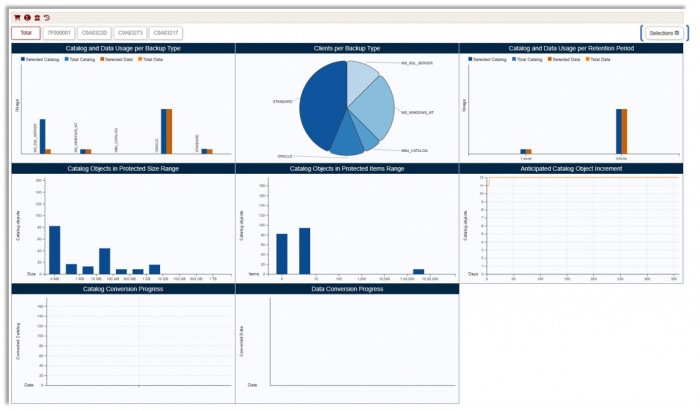
Reports provide statistical charts on image catalog and related information.
Reports are available for individual environments or as a collective view.
Use the Selections button (top right) to filter charts. -
 Charts for selected migration data.
 Charts for non-selected data.
 Charts for both selected and non-selected data.
-
Example: Charts for selected data.
-
Summary and Environment History reports are available.
Click for Summary.
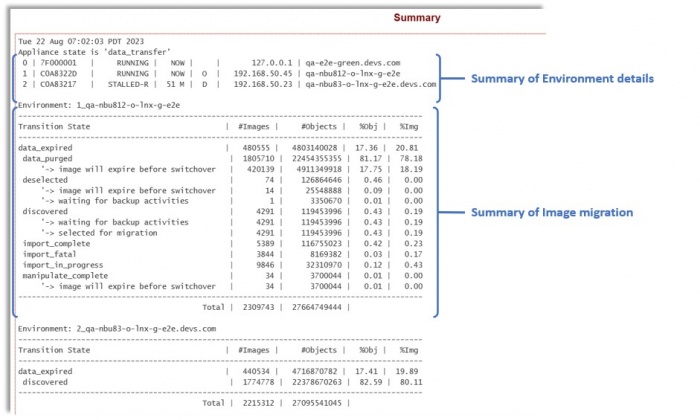
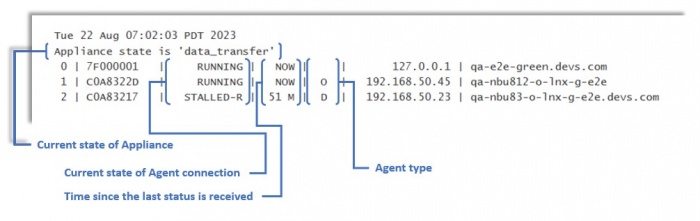
-
Summary Report shows:
- Tranzman appliance state (e.g., configuration_migration, data_transfer, completion)
- Agent connection status (RUNNING or STALLED)
- Time since last agent connection
- Agent role: Origin (O), Destination (D), finalized (Of/Df)
-
Image State Details:
- data_expired: Images expired
- data_purged: Images migrated to destination
- deselected: Images deselected (e.g., Catalog backup)
- discovered: Images discovered on server
- export_complete: Exported images
- export_in_progress: Export in progress
- export_fatal: Export failed (Origin troubleshooting)
- manipulate_complete: Images updated for import (stored on /data)
- manipulate_in_progress: Images being updated
- import_complete: Migrated images
- import_in_progress: Import in progress
- import_fatal: Import failed (Destination troubleshooting)
-
Environment History: Click
 for environment history.
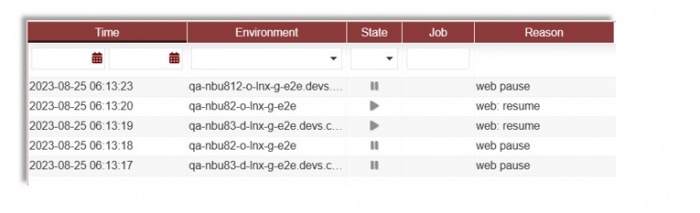


Alerts & Activities
-
Alerts: View all issues identified during transition.
Shows time, Task ID, category, and description.
-
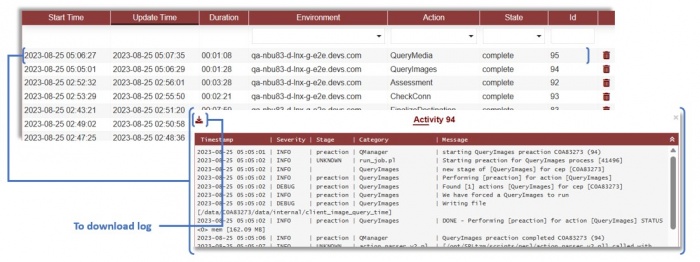
Activities: Shows all job information.
Click a job for task details; download logs for troubleshooting.

Images Management
-
View all discovered images for backup domains.
Manipulate migration: ignore, reset, force import, etc.
Click an image for details and audit stages.
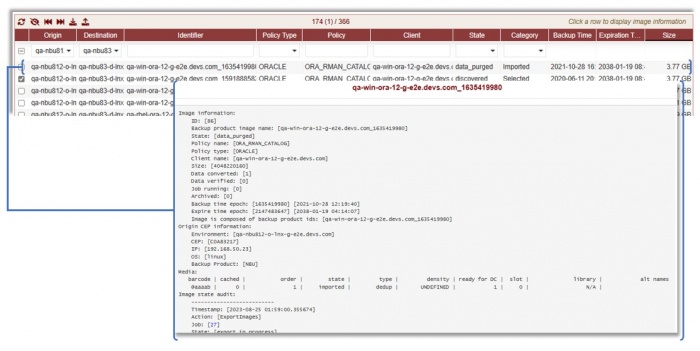
-
Image actions:
 Refresh images
 Ignore (mark as Deselected)
 Reset state to Selected or Discovered
 Force import
 Download as CSV
 Upload custom image list
-
Filters: Origin, Destination, Policy Type, State, Category, and custom text.
All dropdowns support multi-selection; default is no filter.


Media Management
-
Access media info under Views → Media.
Filter media as needed.
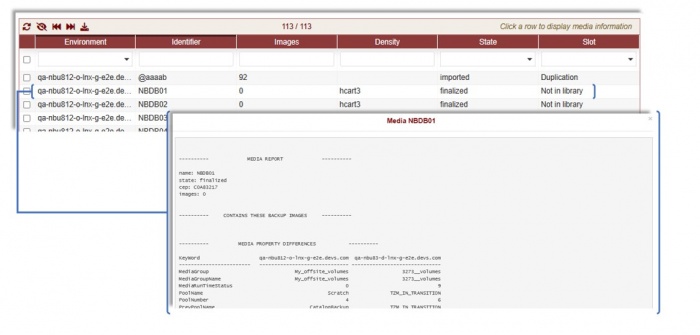
-
Media Report:
---------- MEDIA REPORT ---------- name: NBDB05 state: finalized cep: C0A83217 images: 2 -
Images in Media:
---------- CONTAINS THESE BACKUP IMAGES ---------- qa-nbu812-o-lnx-g-e2e.devs.com_1692928837 qa-nbu812-o-lnx-g-e2e.devs.com_1692928878 -
Media Property Differences:
---------- MEDIA PROPERTY DIFFERENCES ---------- KeyWord qa-nbu812-o-lnx-g-e2e.devs.com qa-nbu83-d-lnx-g-e2e.devs.com ------------------------ ------------------------------ ------------------------------ AssignedDateTime 2023-08-25 02:00:37.000000 1970-01-01 00:00:00.000000 ... -
Rules Applied in Media:
---------- RULES ---------- TYP| RULE ID| MAP ID| ORIG| DEST|ORDER| CRITERIA|OPERATION| MATCH| RESIDENCE| DEVICE EME| 3| 2| C0A83217| C0A83273|10001| all| =| all| N/A| N/A ---------------------------------------------------------------------------------- -
Media State Audit:
-------------------------- Media state audit: -------------------------- Timestamp: [2023-08-25 02:07:18.879454] Action: [CreateMedia] Job: [38] State: [imported] Reason: [Changed to imported] ... -
Media actions:
- Refresh
- Ignore (mark as Deselected)
- Reset state
- Force import (after manual resolution)
- Download as CSV

Config Objects
-
Lists all available configuration objects for migration.
Shows status: selected, deselected, imported, not selected.
Filter options available under Views → Config Objects. -
States:
- deselected: Excluded by rules in Selections
- exported: Available on Origin
- imported: Migrated to Destination
- not selected: Auto-selected, not in rules
- selected: Selected via Selections or Rules


